









Supercharge your Martech stack: A guide to HubSpot-WordPress integration
Integrating HubSpot with WordPress is aligning content, marketing, and sales around a single, connected customer journey. Think about it and you’ll realize a HubSpot–WordPress integration is actually a lot more than just linking a CRM or a marketing automation solution to a CMS.
Done right, your WordPress HubSpot integration can help you leverage your customer data, deliver personalized experiences at scale, and power closed-loop reporting that leadership can trust to guide strategy. The kind of alignment that consistently drives measurable ROI across the board.
At rtCamp, we’ve delivered hundreds of enterprise martech implementations, connecting WordPress with CRMs, CDPs, ERPs, and other business systems. Among them, the HubSpot–WordPress integration consistently stands out as one of the most requested and impactful projects we deliver. Here’s how to approach yours so it delivers lasting enterprise value.
HubSpot-WordPress integration: The prerequisites
Before you begin your HubSpot–WordPress integration, think of it less as connecting two tools and more as aligning two of your core enterprise systems. This integration impacts everything from marketing operations and sales alignment to revenue visibility, data governance, and customer experience.
It’s also worth noting that the quality of your integration depends less on the plugin or connector you choose, and more on how prepared your infrastructure, HubSpot plan, and governance model are to sustain a continuous, reliable data relationship between the two platforms.
Here are a few things you need to get right before planning your integration.
Choosing the right HubSpot plan
Your HubSpot WordPress integration is only as powerful as the HubSpot plan behind it. The higher your HubSpot tier, the more advanced features your integration can unlock, whether that’s deeper automation, richer personalization, or enterprise-grade closed-loop reporting.
How your HubSpot plan impacts your HubSpot-WordPress integration:
Let’s say a senior decision-maker from a target account logs in to your partner portal (WordPress), downloads a pricing guide, and registers for a webinar.
With HubSpot Marketing Hub Enterprise, each of these touchpoints can be captured as custom behavioral events, scored according to buying intent, and synced to an account record. Once that score crosses a predefined threshold, HubSpot can automatically trigger:
- A notification to the assigned account executive.
- A tailored nurture sequence aligned to that persona’s industry vertical.
- A personalized CTA swap across WordPress (e.g. “Book a demo” instead of “Download the guide”).
Here’s how that journey plays out technically and how your HubSpot plan defines what’s possible:
| User action (on WordPress) | What happens in HubSpot | HubSpot tier often required | Technical integration notes |
| User logs into partner portal | Login captured as a behavioral event linked to the contact record | Enterprise (often required) | Requires Custom Behavioral Events API and Tracking Code (available only in the Enterprise plans). Can be triggered via middleware or direct REST API calls. |
| User downloads pricing guide | Download recorded as a conversion or form submission | Free+ | Usually tracked via the HubSpot Forms API, or by embedding a HubSpot form around the download CTA. Some teams simulate this with tracked file events in JavaScript. |
| User registers for a webinar | Registration logged and synced to contact record | Free+ | Can be handled through HubSpot forms, HubSpot Meetings, or custom integrations with webinar solutions |
| Lead scoring applied (+20 points for pricing guide) | Contact’s score updated | Professional / Enterprise | Lead Scoring available from Pro upwards; predictive/AI scoring only on Enterprise. |
| Workflow triggered when score threshold reached | Automation runs (sales alert, nurture email, etc.) | Professional / Enterprise | Built with HubSpot’s Workflows tool; triggers can include form submissions, property updates, or score thresholds. |
| Sales contact notified or CRM task created | Alert or CRM task assigned to owner | Professional/Enterprise | Automated tasks and internal notifications are created through workflows based on triggers like contact behavior and lifecycle stage changes. |
| Personalized CTA displayed on WordPress | CTA or content adapts to user lifecycle stage | Professional/Enterprise (often required) | Requires Smart Content or Smart CTA features, or the HubSpot Personalization API, embedded in WordPress via API/middleware (e.g., WP Fusion). |
A lot of what’s happening on the HubSpot side in this scenario is only possible at higher HubSpot tiers.
In other words: your HubSpot plan sets the ceiling for what your WordPress integration can achieve.
- Starter / Free tiers → Basic contact capture and static analytics.
- Professional → Workflow automation, lead scoring, CRM alerts, and structured reporting.
- Enterprise → Full behavioral event tracking, account-based marketing (ABM), and smart content APIs for advanced personalization.
At scale, this difference becomes strategic. It’s not about tracking pageviews—it’s about aligning marketing, sales, and customer experience around real behavioral data, synced seamlessly with WordPress.
To recap:
| Integration depth | Example features | HubSpot tier |
| Basic sync | Contact creation, form submissions | Starter / Free |
| Automation | Lead scoring, workflows, CRM tasks | Professional |
| Orchestration | Behavioral tracking, ABM, Smart CTAs | Enterprise |
So when designing your WordPress-HubSpot integration:
- Audit your HubSpot plan capabilities early, before committing to API-based workflows that your license can’t support.
- Use middleware (e.g., WP Fusion, custom API gateways) to simulate higher-tier capabilities safely where possible.
- Map out where HubSpot stops… and where your WordPress or middleware stack must take over for advanced personalization or data ownership.
💡 But what about workarounds for the lower plans?
If you’re on lower tiers, some of such workflows may be effectively recreated using third-party connectors, custom code, or additional middleware. For example, HubSpot integration with WordPress can be extended with WP Fusion or Zapier to feed WordPress events into HubSpot, then trigger more limited automations. But these solutions could introduce added complexity, higher maintenance overhead, and fragile dependencies if not implemented correctly. Good implementation is the key.
Preparing your WordPress environment
Before moving forward with a HubSpot WordPress integration, it’s important to assess whether your platform is positioned to support it. In consultation, we usually explore:
Platform baseline
For an integration between HubSpot and WordPress to work well, it’s important that your WordPress website runs on an infrastructure that can handle enterprise-scale delivery, uptime, and compliance requirements. It’s not just about keeping WordPress current, it’s about ensuring the foundation can support the data capture, event tracking, and personalization that a WordPress–HubSpot integration demands.
Theme and plugin ecosystem
How extensible is your WordPress build? For example, if your theme or existing plugins or any custom coding on your website were not built with modern coding standards, integration touchpoints (tracking scripts, API calls, dynamic embeds) may encounter issues. Identifying these early helps avoid downstream rework. In many cases, an older theme or legacy plugins can create friction for an integration between HubSpot and WordPress, especially around tracking scripts and API calls. Identifying constraints early avoids downstream issues.
Administrative access and control
Do the right stakeholders (marketing ops, IT security, content owners) have the level of access they’ll need to configure and govern the integration? Enterprises typically need a clear separation of privileges, not just blanket admin rights.
Defining your integration approach & governance
The final prerequisite is clarity on how you intend to connect WordPress and HubSpot and how that integration will be governed long-term. In consultation, the focus often falls on three areas:
- Integration path: Will you rely on the official HubSpot WordPress plugin, a third-party/custom integration plugin, or do you need API-based connections or middleware for more sophisticated data flows? This decision sets both the ceiling and the flexibility of your HubSpot and WordPress integration.
- Data governance: Which WordPress events and properties are significant enough to sync into HubSpot, and how will they map to your CRM schema? You must also evaluate compliance frameworks that apply to you (like the GDPR, CCPA, HIPAA, or sector-specific mandates) when designing your HubSpot WordPress integration.
- Ownership. Who owns the integration once it goes live? In complex organizations, it’s rarely a single team. A sustainable model typically involves marketing operations for workflow accuracy, IT for system integrity, and compliance for oversight. Explicit ownership prevents gaps and ensures the integration scales with business needs.
A well-defined governance model ensures that your integration between HubSpot and WordPress remains stable, compliant, and strategically valuable, not just at launch, but as your digital experience and customer data strategies evolve.
Once these prerequisites are in place (your HubSpot plan defined, WordPress environment prepared, and governance model clear), you’re ready to move from planning to implementation.
In the next section, we’ll explore the different methods of connecting HubSpot with WordPress, starting with the official plugin to advanced API integrations and hybrid enterprise models, and help you identify which approach best fits your organization’s goals, scale, and compliance posture the best.
Three ways to integrate HubSpot with WordPress
When it comes to connecting HubSpot with WordPress, there’s no single “right” method — only what’s right for you.
Broadly, there are three ways to integrate HubSpot with WordPress, each suited to a different stage of digital maturity:
- The official HubSpot WordPress plugin, ideal as a starting point or the “foundational” layer.
- Connecting existing WordPress forms to HubSpot, when you want to retain your form experience natively on WordPress.
- Deep data integration using middleware or APIs, for enterprises seeking multi-system orchestration.
Each comes with its own strengths, tradeoffs, and technical implications. Let’s start with the first (the official HubSpot WordPress plugin) and see how it fits into an enterprise environment.
HubSpot-WordPress integration: Using the official HubSpot WordPress plugin
For most organizations, the official HubSpot WordPress plugin is the natural starting point. It’s the officially supported, no-code integration that connects WordPress directly with HubSpot’s CRM, forms, live chat, and analytics, all within your WordPress admin.
At enterprise scale, however, this “all-in-one” integration works best as a foundation layer, not the final architecture. We’ll get to that in a bit, but first let’s see that the plugin does well.
What the official integration does well:
The plugin embeds HubSpot’s frontend components and data capture scripts directly into WordPress. This allows you to:
- Capture and sync leads through HubSpot forms, pop-ups, and CTAs.
- Enable live chat and chatbots for lead qualification or customer service.
- Track user interactions and sessions via the HubSpot tracking code.
- Access CRM insights from within WordPress for contact-level visibility.
- Measure content performance using the built-in HubSpot analytics panel.
Connecting is pretty straightforward: Simply install the HubSpot WordPress plugin from the WordPress repository and activate it.
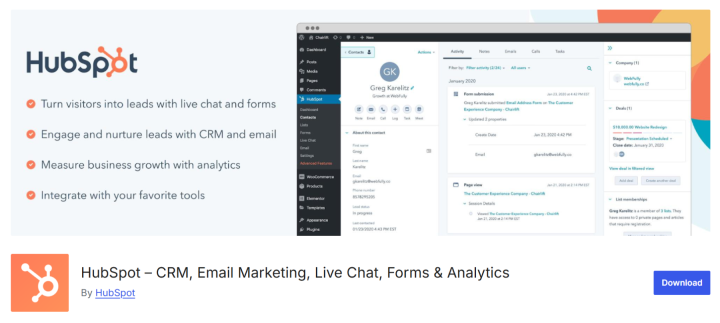
Once active, you’ll be prompted to authenticate using your HubSpot account via OAuth. This establishes a secure connection and automatically injects HubSpot’s tracking script across your WordPress pages.
When your HubSpot WordPress plugin is installed and authenticated, the next step isn’t just “turning on features,” it’s configuring them for scale, compliance, and observability.
Here’s how to approach configuration with an enterprise lens:
1. Set up in staging, not production first
Deploy and test your HubSpot integration in a staging environment to validate script behavior, event tracking, and data sync accuracy.
- Confirm the tracking script loads as expected without breaking caching or CDN rules.
- Validate that data is flowing correctly from forms, CTAs, and chat to HubSpot Contacts.
- Compare analytics and conversion tracking parity between staging and HubSpot’s reporting dashboards.
2. Configure roles and access controls
Ensure that only authorized teams (e.g., marketing ops, IT, and compliance) can adjust integration settings.
- Limit HubSpot API key or OAuth re-authentication rights to admins.
- Restrict who can create or edit HubSpot forms or chatbots within WordPress.
- Use HubSpot Teams and permissions to align access with internal data governance policies.
3. Fine-tune scripts and assets for performance
By default, HubSpot’s scripts (forms, chat, tracking) load site-wide, which can affect Core Web Vitals, caching efficiency, and CDN optimization.
To avoid that:
- Use conditional loading to exclude HubSpot assets from performance-critical pages that don’t need them (e.g., homepages in some cases). Allow HubSpot scripts to load only on pages containing HubSpot forms, CTAs, or pop-ups. This can be done via conditional logic in your theme or by using a performance plugin.
- Embed HubSpot forms directly on relevant pages so that each form automatically loads only the scripts it needs, avoiding site-wide performance impact.
- For custom or high-traffic implementations, consider submitting forms via the HubSpot Forms API. This allows you to keep UX fully within WordPress (or your frontend framework) while sending data securely and asynchronously to HubSpot.
4. Establish tracking and consent alignment
Here, you take care of your compliance requirements:
- Integrate HubSpot’s tracking code through your Consent Management Platform (CMP) or Tag Manager for opt-in compliance (GDPR, CCPA).
- Enable HubSpot’s cookie consent banner or unify consent management with your enterprise CMP via API or webhook.
- Audit how HubSpot stores consent timestamps, user preferences, and source URLs for regulatory readiness.
5. Connect to downstream systems deliberately
Before enabling full automation, decide which WordPress events should trigger HubSpot actions. Sync only high-value interactions (e.g., form fills, content downloads, purchases) not every click or view.
Also, map and configure custom properties in HubSpot to reflect your WordPress data structure (CPTs, taxonomies, user roles, or ecommerce objects). This ensures clean data ingestion, proper segmentation, and consistent analytics across systems.
If your organization uses Salesforce, Dynamics 365, or another enterprise CRM alongside HubSpot, ensure that HubSpot’s outbound syncs respect existing lead routing, lifecycle stages, and SLAs. HubSpot often functions as the marketing automation layer feeding the primary sales CRM, so alignment between the two prevents data conflicts and workflow collisions.
Most teams start their HubSpot–WordPress integration journey with the official plugin, and it’s easy to see why. It connects CRM, forms, chat, and analytics with minimal setup.
But as integrations mature and enterprise needs evolve the limitations of the default plugin start to surface. That’s where enterprises need to look beyond the out-of-the-box integration and architect for scale, governance, and control.
Beyond the Official HubSpot Plugin: Enterprise limitations
At first glance, the official HubSpot WordPress plugin provides everything a marketing team needs: seamless CRM sync, analytics, and engagement tools within WordPress. For small to mid-sized environments or early-stage enterprise teams, it’s an easy way to unify lead generation, marketing automation, and analytics without developer intervention.
But as implementations mature, and as multiple brands, regions, or compliance obligations enter the picture, these capabilities plateau. The plugin is designed for marketing agility, not enterprise-grade complexity.
Enterprises often require extensibility, control, and observability that go beyond what the plugin alone can offer. The table below illustrates where the native integration falls short, and how custom developed layers typically extend it.
| Enterprise Challenge | How the Plugin Falls Short | How Enterprises Extend It (Custom Coding Layer) |
| Personalization | HubSpot’s plugin supports simple WordPress → HubSpot data sync but lacks real-time, bi-directional personalization. Can’t natively personalize WordPress content using HubSpot segmentation data. | Implement webhook-based syncs or scheduled jobs to pull CRM data (lead scores, lifecycle stage, persona) back into WordPress and personalize the website experiences dynamically. |
| Advanced Data Orchestration and Governance | Higher-tier HubSpot plans support custom field mapping, but native integrations still perform data validation, enrichment, and deduplication after data ingestion; more advanced data management tools like Operations Hub or a custom WordPress integration are required to clean data pre-ingestion | Deploy middleware (serverless functions, APIs, or ETL pipelines) to sanitize, enrich, and log data before ingestion — supporting GDPR, CCPA, and SOC 2 compliance. |
| Custom data and Field Mapping | The native HubSpot plugin is primarily designed to work with the standard CRM objects: contacts, companies, and to a limited extent, deals and tickets through forms and chat. It is not built to understand or process the more complex data structures found in Custom Post Types (CPTs), e-commerce platforms like WooCommerce, or learning management systems (LMS). | To handle complex WordPress data like custom post types, WooCommerce orders, and LMS content, which require HubSpot’s Custom Objects for proper structure, enterprise users can implement a custom solution via the HubSpot API, use a middleware service, or employ an advanced third-party plugin (like WP Fusion). |
| Performance and Frontend Overhead | Client-side tracking scripts and form embeds can affect Core Web Vitals, caching, and CDN optimization. | Move to server-side event capture, lazy-load HubSpot assets, or use edge functions to offload data sync closer to the user. |
| Compliance and Regional Data Residency | While paying customers can select or migrate their account’s data center to regional hubs (e.g., EU, Canada, Australia) to meet most data residency needs, some strict regional or internal corporate policies may still require data to be captured and handled entirely within a specific geography | Implement server-side event capture and leverage middleware hosted in the required geography to offload data sync. This approach ensures all data is processed within the correct regional boundaries from the start, providing the granular control necessary to meet the most stringent compliance and data residency requirements. |
| Observability and Error Tracking | The plugin doesn’t provide audit logs, sync history, or monitoring for webhook/API failures. | Integrate logging and monitoring into enterprise APM tools (New Relic, Datadog, Sentry) to trace payloads, response codes, and sync anomalies. |
Once the limits of the official plugin become clear, most enterprise teams don’t abandon it — they expand on it. The next layer of HubSpot-WordPress integration typically focuses on forms, where most customer data originates. This phase is less about embedding HubSpot tools (Forms) and more about connecting the sophisticated, branded WordPress forms enterprises already use with HubSpot’s CRM and automation systems.
HubSpot-WordPress integration: Connecting your existing WordPress forms plugin to HubSpot
Many enterprise teams prefer to keep the WordPress form experience they’ve already built (advanced and branded UX, complex conditional logic, payment flows, multi-step wizards, localized copy, accessibility) and push submissions into HubSpot for CRM, marketing automation, and lifecycle orchestration.
This happens mostly because HubSpot’s forms can feel limiting for the more mature enterprise or large-scale web infrastructures. Everything from branding and implementing transactional/payment flows to localizations hits HubSpot’s proprietary walls.
That’s where WordPress form solutions built for enterprise scale step in. By keeping the form layer in WordPress and connecting it to HubSpot via APIs, enterprises gain:
- Brand continuity. Forms look, feel, and behave exactly like the rest of your site/digital experience (drawing from the same design system).
- Functional depth. Advanced workflows (multi-step wizards, conditional logic, payments, file uploads, etc.) are supported without the limits of HubSpot’s native forms. You can also handle localization and accessibility better by designing/managing your translations, regional formats, RTL layouts, and WCAG compliance directly in WordPress, meeting global and accessibility requirements.
- Data ownership & auditability. Submissions are stored first in WordPress, giving you a canonical record for consent proof, reconciliations, and regulatory audits.
Let’s now see the top ways you can integrate your HubSpot account with popular WordPress form plugins.
Integration methods for connecting WordPress forms to HubSpot
Again, there’s no one, single way to integrate WordPress forms with HubSpot — only what aligns with your scale, compliance and performance requirements, and technical maturity.
Some enterprises need to move fast with plug-and-play tools. Others need deep, auditable data movement that survives submissions at scale and regulatory reviews.
The right integration path often isn’t about choosing one method, but knowing how and when to layer them. Let’s explore five common approaches enterprises use today starting with the simplest to the more strategic ones.
Method 1: Through plugin addons/extensions
The easiest way to connect WordPress forms with HubSpot is through official or community-built add-ons. Addons like Gravity Forms HubSpot Add-On, Fluent Forms’ HubSpot module, or Formidable Forms HubSpot Add-on let marketing teams connect directly to HubSpot using OAuth or API keys from their WordPress forms solutions — no code required.
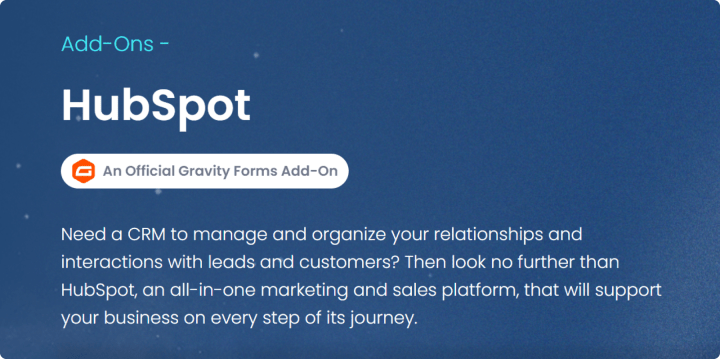
However, the simplicity comes with trade-offs. Add-ons lack retry logic and often depend entirely on HubSpot’s API availability. At scale (when campaigns generate thousands of submissions over a short period), these integrations can drop entries silently during API rate throttling or network failures. They also tend to store limited compliance metadata, making them unsuitable for regulated sectors.
Once activated, these extensions allow form submissions to sync instantly into HubSpot as contacts, companies, or deals, with field mapping handled through a point-and-click interface. It’s a clean, low-friction approach that lets teams launch quickly and validate their lead flow before deeper technical work begins.
Enterprises typically use this method for microsites, campaign pages, or regional instances where agility matters more than full observability. It’s the right starting point, but rarely the final solution.
Method 2: Third-Party SaaS Connectors (Zapier, Make, etc.)
As martech stacks evolve, integration needs often extend beyond just WordPress and HubSpot. Third-party SaaS platforms like Zapier, Make (formerly Integromat), and Tray.io act as universal connectors, allowing marketing ops teams to orchestrate workflows across systems like HubSpot, Salesforce, Slack, Airtable, and internal CRMs.
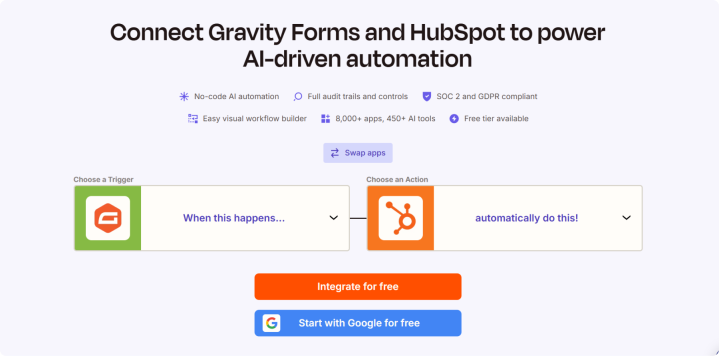
These connectors work by capturing form submissions via webhooks, transforming the data in their cloud environment, and pushing it to HubSpot (and often other systems simultaneously). For example, a single form submission might create a HubSpot contact, alert a sales team on Slack, and log a record in a spreadsheet for QA.
While flexible and fast to implement, these services introduce new considerations at enterprise scale. Each submission passes through an external system, creating data residency and compliance risks in industries bound by GDPR, HIPAA, or SOC 2 requirements. They also come with latency (seconds to minutes), acceptable for lead nurturing though but not for real-time personalization or transactional logic. Plus, you’re looking at even more SaaS contracts.
Enterprises usually adopt SaaS connectors as bridge solutions — id eal for experimentation, cross-tool syncs, or internal workflows, before transitioning critical data flows to internal middleware or APIs. They can also be preferred for lower-sensitivity data flows where speed of configuration matters more than data residency.
Method 3: Direct API integration via hooks
For high-traffic or compliance-heavy environments, direct API integration offers full control and reliability. Instead of relying on prebuilt connectors, development teams hook directly into WordPress form submission events — for example, gform_after_submission in Gravity Forms or fluentform_submission_inserted in Fluent Forms.
This approach captures the data server-side, queues it locally, and sends it to HubSpot via the REST API, with retries, backoff policies, and error monitoring. Every transaction can be logged with timestamps, response codes, and HubSpot IDs for reconciliation — providing the kind of observability enterprises need for audits and SLAs.
Beyond reliability, API-based integration also supports real-time personalization and multi-directional sync. Using HubSpot’s Webhooks API, data changes in HubSpot can trigger updates in WordPress, for example, unlocking premium content for users once they become “Marketing Qualified Leads.” (This particular example would require a custom listener endpoint on WordPress to receive and process HubSpot’s webhook payloads securely. But you get the drift.)
This approach scales seamlessly across brands, markets, and environments, and integrates easily with enterprise observability tools such as Datadog, New Relic, or Sentry. It’s the gold standard for global enterprises that require both performance and governance.
Method 4: Native WordPress Middleware (e.g., WP Fusion)
Yet another way to connect WordPress forms’ plugins with WordPress is using middleware solutions like WP Fusion. Such middleware solutions bridge the gap between no-code plugins and custom-built APIs. Installed directly in WordPress, these tools act as a local integration layer, mapping users, orders, form submissions, and other custom data to HubSpot.

Once configured, they synchronize events (like form submissions, course completions, or product purchases) directly to HubSpot, often in real time, without external SaaS infrastructure. This preserves data control within your WordPress environment (a critical advantage for compliance-conscious enterprises) while allowing complex workflows to run without engineering overhead.
We cover WordPress middleware later too in this article as an independent integration method, but it’s worth noting that it works perfectly for form orchestration as well. For instance, an enterprise might use WP Fusion to trigger HubSpot workflows when a user submits a form, enrolls in a course, or completes a transaction, effectively connecting the entire customer lifecycle within WordPress.
For mid-market or decentralized enterprise teams, this approach provides scalability, speed, and governance without the full cost or complexity of custom engineering.
Method 5: Layered integration strategy
At enterprise scale, integration isn’t about choosing one method — it’s about layering several strategically. Most large organizations use a hybrid model, where each integration type serves a specific purpose. For example:
- Plugin add-ons power campaign or microsite forms for quick lead capture.
- Middleware synchronizes data across systems and maintains compliance locally.
- Custom APIs handle high-volume, mission-critical pipelines with retry and monitoring.
- SaaS connectors supplement for lightweight, low-risk syncs to external tools.
Together, these layers create a modular integration architecture that balances agility, control, and resilience. This reflects how enterprises actually operate: different teams, brands, or regions using different tools, all feeding into a single HubSpot instance or data warehouse.
The key challenge is such implementation is governance. Without centralized visibility, layered integrations can fragment data flow and create compliance blind spots. That’s why enterprises pair hybrid architectures with centralized logging, audit trails, and data flow mapping, ensuring that every integration path (whether plugin-based or API-driven) is encrypted, observable, and reversible.
This approach is almost like the enterprise standard when it comes to CMS-CRM integrations. It enables marketing teams to innovate quickly while giving IT and compliance teams the oversight they need to protect trust, reliability, and data integrity.
HubSpot-WordPress integration: Using third-party middleware plugins
When enterprises need more than form submissions and when WordPress must become a data source for HubSpot (users, purchases, course completions, membership events, LTV, and more), a middleware plugin inside WordPress is often the right choice.
WordPress middleware plugins/solutions like WP Fusion, Uncanny Automator, AutomatorWP, and Tablesome among others act as an integration layer that maps WordPress events and objects to HubSpot properties and workflows.
While they aren’t a replacement for a well-engineered API pipeline, they offer a powerful middle ground: deeper site-wide sync without building every integration from scratch. These make sense in many cases.
When to consider integrating HubSpot with WordPress using middleware plugins
Choose this HubSpot-WordPress integration method when one or more of the following are true:
- You must sync site-wide events (user account changes, purchases, subscriptions, course progress) into HubSpot, not just discrete form submissions.
- You need bi-directional sync (HubSpot-driven tags / lists should update WordPress users, and WordPress actions should trigger HubSpot workflows).
- You’re integrating WooCommerce, LMS, memberships, or custom post types as sources of customer intelligence in HubSpot.
Here’s how to approach such integrations.
Discovery & scope
Start by cataloguing all WordPress data objects that must sync (such as users, orders, subscriptions, course progress, or custom post types). Then, identify corresponding HubSpot objects (contacts, companies, deals, or custom objects). Finally, define sync direction for each mapping: WordPress → HubSpot, HubSpot → WordPress, or bidirectional.
Involve marketing, engineering, and compliance teams early. This ensures each mapping aligns with data governance policies, retention timelines, and privacy classifications (and not just technical feasibility).
Also, create a mapping inventory spreadsheet that includes data types (string, number, enum, date) and expected frequency of updates. This becomes your “contract” between systems and should be stored in version control.
Choose middleware and validate
Evaluate tools like WP Fusion, Uncanny Automator, AutomatorWP, and Tablesome against your requirements for multi-CRM support, WooCommerce or LMS compatibility, advanced trigger logic, and enterprise-grade licensing.
Before rollout, conduct a proof-of-concept in a staging environment using a limited dataset to validate data mappings, authentication flows, and API rate performance.
Measure API throughput (records per minute) under load and confirm that your middleware supports retry queues, deduplication, and transactional integrity for failed syncs. Verify that it stores minimal personally identifiable information (PII) locally so it’s in line with your compliance requirements, and ensure all webhooks operate over secure HTTPS with authentication tokens or IP whitelisting.
Design mapping & transformation rules
Once you’ve selected your middleware, formalize the mapping logic and data transformations. Create a canonical mapping document that defines:
WordPress field → Transformation rule → HubSpot property → Direction → Data owner
Establish normalization rules (for dates, currencies, country codes, enums) and define conflict resolution policies, such as last-write-wins, HubSpot-authoritative, or WordPress-authoritative.
Clearly specify how consent data is represented and propagated across systems.
Also, express transformation logic as declarative configuration (YAML or JSON) rather than inline PHP or JS code. This allows it to be version-controlled, peer-reviewed, and audited by both technical and compliance teams.
Version-control your mapping documents and transformation scripts alongside your code repositories to ensure traceability, auditability, and rollback capability — all essential for SOC 2 and ISO 27001 compliance.
Privacy & consent
Every record synced between WordPress and HubSpot must carry complete consent metadata (including timestamp, source URL, checkbox state, and purpose of collection) mirrored across both systems for audit parity.
Evaluate any middleware for data residency compliance and ensure its handling of personally identifiable information (PII) follows your enterprise retention policies (for example, no sensitive data is stored longer than necessary).
Also, enforce operational security controls at the governance level. Encrypt all local middleware cache tables and automate API credential rotation via environment variables or a secrets manager (e.g., AWS Secrets Manager or HashiCorp Vault). Apply field-level encryption for any transient PII, ensuring encryption keys are governed by your organization’s centralized Key Management Service (KMS).
These practices ensure that security measures defined in policy are continuously implemented in production, closing the gap between compliance documentation and real-world execution.
Finally, store consent objects in a dedicated database table for audit traceability, including the consent source, version, and timestamp, to maintain verifiable compliance across jurisdictions.
Implement a consent propagation mechanism: When a user withdraws consent in HubSpot, a webhook should trigger WordPress to deactivate automations, stop tracking, and anonymize user data automatically. This closed-loop consent handling not only satisfies GDPR’s “right to be forgotten” but also supports SOC 2 and ISO 27001 audit expectations around event-driven compliance.
Configure plugin automations
Implement triggers (e.g., user created/updated, order completed, membership level change) and map them to HubSpot actions (create contact, add tag, enroll workflow).
Use batching and throttling to respect API rate limits, handling 429 errors with graceful retries.
For high-volume systems, queue webhook payloads via Amazon SQS, Redis, or RabbitMQ, and process them asynchronously to improve throughput and reliability.
Test comprehensively
Run integration tests for each mapping in a staging environment populated with production-like data.
Simulate edge cases: duplicate users, malformed records, API rate limiting, and temporary HubSpot downtime.
Also, verify that HubSpot IDs are correctly stored in WordPress for deduplication, reconciliation, and backfills.
Use synthetic test accounts and replayable payloads to stress-test your automations. Build automated test suites that validate not just success, but also error and retry behaviors under load.
Monitoring & error handling
Configure real-time logging and alerting for sync errors, webhook failures, API timeouts, and backlog buildup. Track key health metrics such as event latency, API response times, queue length, retry counts, and success rates over time to identify emerging issues before they cascade.
Establish escalation procedures for failed automations, including ownership, SLAs, and rollback plans.
Stream logs to a centralized observability platform such as Datadog, New Relic, or an ELK stack. Emit structured JSON logs with correlation IDs so incidents can be traced from initial WordPress submission through to HubSpot API response.
Integrate notifications into your enterprise incident management systems (e.g., PagerDuty, Opsgenie, or ServiceNow) for unified response tracking and audit logs.
Finally, perform regular data reconciliation: compare HubSpot contact and deal counts against WordPress-side event logs to detect silent data loss, duplication, or desynchronization early.
Define operational KPIs for your integration (such as a 99.9% sync success rate and <2-minute average event latency) and review them during monthly operational audits. Treat these metrics as part of your broader digital reliability scorecard.
Governance
Establish a formal change-control process for all integration-related updates — including field mappings, transformation logic, and automation triggers. Require cross-functional signoff from marketing, engineering, and legal before deploying schema or workflow changes to production.
Maintain a central integration registry that documents data flows, API scopes, webhook endpoints, and system dependencies. This registry acts as the single source of truth for audits, incident response, and onboarding new stakeholders.
Store mapping schemas and automation rules in version control (Git) alongside application code, tagged by release. Maintain a detailed change log for every schema or workflow update to preserve a verifiable chain of custody, often a key requirement for frameworks like SOC 2 and ISO 27001.
Implement role-based access control (RBAC) for middleware and integration admin interfaces, ensuring marketing and development teams have separate permissions. This minimizes the risk of accidental misconfiguration or unauthorized data exposure.
Schedule periodic data and schema audits (weekly or monthly) to detect mapping drift, deprecated fields, and API version mismatches before they affect production.
Finally, maintain and periodically test a rollback plan. A verified rollback process allows you to revert automation misfires or schema errors quickly, preserving data integrity and uptime during critical marketing or sales operations.
Rollout
Deploy the integration gradually using a canary approach, enabling it for a small audience or subset of data first. Monitor metrics closely, and only expand coverage once stability is confirmed. Keep a backfill plan ready to resync missed or failed events after initial launch.
Post-deployment validation and maintenance
After rollout, the middleware integration becomes a living system which evolves as HubSpot schemas, WP plugins, or APIs change. From here:
- Run monthly validation tests: confirm all mappings still align with HubSpot property types and names.
- Check API rate-limit dashboards and optimize batching settings quarterly.
- Maintain compatibility testing for middleware/plugin updates (always test in staging before production). Document version baselines: WP core, middleware plugin, HubSpot API version, PHP version.
In all, WordPress middleware like WP Fusion is a practical, high-value choice when you need site-wide, business-level sync between WordPress and HubSpot without building everything from scratch. It accelerates time-to-value and centralizes non-developer control of mappings and automations.
That said, treat middleware as a strategic component. Remember that it needs governance, monitoring, and periodic review. For the most critical, high-volume, or heavily regulated flows, combine middleware with a hardened engineering pipeline (central ingestion + worker queues) to get the best of both worlds: speed of configuration and enterprise-grade resilience.
So there you have them: three ways to connect HubSpot with WordPress, each suited to different levels of scale and sophistication. But even well-planned integrations can surface challenges once you go live. Before you launch, let’s look at some of the most common issues enterprises face and how to avoid them.
Common issues when integrating HubSpot with WordPress
Here are some common challenges when integrating HubSpot with WordPress, and where to look when they occur, and what typically causes them.
| Issue | Where to look | What could be wrong |
| Integration failures | HubSpot plugin or API connection | Expired API keys, OAuth tokens, misconfiguration, insufficient permissions, or hitting HubSpot API rate limits |
| Form display errors | WordPress frontend (theme, JS, CDN) | Script conflicts with other plugins/themes, caching/CDN blocking embed code, incorrect placement of HubSpot form shortcode |
| Form sync failures | HubSpot CRM / submissions log | Field mapping errors, webhook misconfigurations, plugin sync failures, or sandbox vs. production mismatches |
| Analytics gaps | Tracking scripts on WordPress pages | HubSpot tracking code missing/duplicated, conflicts with caching/minification, or consent management blocking cookies under GDPR/CCPA |
| Workflow breakdowns | HubSpot workflows & lifecycle settings | Misaligned lifecycle stages, outdated field mappings, missing permissions, or workflows failing in production despite working in sandbox |
Once you’ve worked through the early issues, the focus shifts from fixing to optimizing. The next section outlines best practices to ensure sustained reliability, data integrity, and long-term return on your integration investment.
Best practices for maintaining your WordPress-HubSpot integration
Here are a few best practices we recommend to keep your WordPress HubSpot integration stable, compliant, and strategically aligned over time.
| Best practice | Where it applies | Enterprise value |
| Data synchronization oversight | HubSpot CRM records, API dashboards, and integration logs | Ensures data parity across systems. Prevents silent sync drops that distort attribution and pipeline visibility. |
| Audit cadence | Quarterly or biannual integration reviews | Validates compliance posture (GDPR, CCPA, HIPAA) and alignment with marketing ops KPIs. Surfaces technical debt early. |
| Change management & version control | WordPress staging, HubSpot sandbox, and Git workflows | Controls risk by testing updates (WordPress core, plugins, HubSpot APIs) in isolation before production rollout. |
| Regression testing of forms & workflows | WordPress lead forms, HubSpot automations | Ensures lead capture and scoring logic still work post-update, avoiding data flow interruptions or lost leads. |
| Scalability & performance planning | HubSpot API quotas, WordPress hosting telemetry | Anticipates scale challenges by tracking API throughput, concurrent syncs, and hosting resource utilization. |
| Data mapping & schema governance | HubSpot properties, WordPress form fields, custom objects | Maintains a single source of truth by enforcing consistent data definitions and field ownership across teams. |
| Compliance & consent management | Form opt-ins, HubSpot tracking, cookie banners | Reinforces trust by syncing only consented data, enforcing data residency, and logging consent for audits. |
| Shared ownership & accountability | Marketing ops, IT, and compliance stakeholders | Embeds cross-functional responsibility for uptime, data quality, and governance, turning the integration into an enterprise asset. |
Following these practices ensures your integration between HubSpot and WordPress isn’t just technically functional but also delivers on the end-to-end marketing-to-sales alignment that you set it up in the first place for.
Conclusion: From integration to transformation
If you’re already investing in two of the most powerful platforms in the enterprise stack (HubSpot as your CRM and WordPress as your CMS), get them to work together as they work the best like that.
The HubSpot-WordPress integration methods outlined above cover every viable approach to integrating the two: from the simplicity of the official HubSpot plugin, to the flexibility of connecting existing WordPress forms, to the sophistication of middleware and API-based architectures that enable full synchronization.
When your CMS and CRM finally speak the same language, WordPress stops being “just your website” and becomes the front line of your customer strategy, seamlessly powered by HubSpot intelligence behind the scenes.
If you’re looking at a complex HubSpot–WordPress integration, check out our martech integration services. You can also book a free consultation which includes up to 20 hours of scoping and discovery with our engineering team to help you get started on your HubSpot–WordPress integration journey. Let’s discuss your HubSpot-WordPress integration.
Frequently Asked Questions (FAQs)
Do I need a paid HubSpot plan to integrate with WordPress?
Not necessarily. The official HubSpot WordPress plugin works with both free and paid HubSpot tiers, but advanced functionality (like custom workflows, APIs, or CRM object syncing) typically requires a Marketing Hub Professional or Enterprise plan. Your plan essentially determines how deep the integration can go.
Can I use other marketing plugins in conjunction with the HubSpot plugin?
Yes, but compatibility varies. You’ll need to check for known conflicts, especially with analytics, forms, and email marketing plugins that also inject tracking scripts or manage cookies. A good rule of thumb is to audit overlapping features: HubSpot should remain the source of truth for CRM data, while WordPress handles frontend experiences.
How do I ensure my HubSpot–WordPress integration is GDPR-compliant?
Compliance depends on how you implement your integration. Ensure that:
- Consent metadata (timestamp, checkbox, source) travels with each submission.
- Data residency settings match your regional compliance requirements.
- HubSpot and WordPress maintain synchronized audit logs.
Also review HubSpot’s Data Processing Agreement (DPA) and your hosting provider’s GDPR readiness documentation.
How long does a HubSpot and WordPress integration typically take?
For a standard form and contact sync, it can be set up in hours. For deeper integrations (multi-site setups, CRM automations, custom workflows), expect a few weeks, especially when compliance, testing, and migration phases are included.
Can rtCamp help with setting up or maintaining this integration?Yes. We offer marketing technology integration services to scope, design, and deploy custom HubSpot–WordPress integrations. For enterprises planning their integration or optimizing an existing setup, we include 20 hours of free discovery and consultation. Get in touch to get started confidently.
On this page


Leave a Reply