








Craft CMS is a well-designed product, and teams leaving it are not walking away from broken software. They leave because it has become slow and expensive to run, the developer who knew it inside-out moved on, editors wait on engineering help for changes they should handle themselves, and portfolio licensing no longer clears budget review.
WordPress solves each of those problems. It’s open source, runs on the world’s largest CMS developer ecosystem, and gives editors autonomy through its block editor. The decision to migrate Craft CMS to WordPress kicks off a serious piece of work, and one where the difference between a clean outcome and a painful one comes down entirely to how the first week is spent.
This guide is written for the digital director or editor-in-chief who needs to understand what they’re signing up for before committing, the CTO who needs to know where the risk lives, and the engineering team that will execute it. The tone shifts deliberately between those audiences as the guide moves from strategy to implementation to emphasize the depth of work.
rtCamp’s WordPress migration service has completed over 300 CMS-to-WordPress migrations across 17+ years. The hard-won lessons from those projects are the foundation of every section that follows.
What to expect: The migration at a glance
Before diving into how each piece of the Craft CMS to WordPress migration translates, let’s understand the shape of the project:
A typical single-site Craft CMS to WordPress migration runs eight to sixteen weeks. Your Craft CMS site keeps running throughout. Editors keep publishing on Craft CMS until the final days before launch, when both platforms run in parallel, so the team can validate the new setup without pressure. The last content import happens in the 24–48 hours before DNS is switched.
The work happens in four phases executed in this order: audit and mapping, build, migration, and QA and launch. Teams that skip the audit or start building before the content model is fully mapped might end up with scope creep.
Here’s how each major Craft CMS feature lands on WordPress:
| Craft CMS Feature | WordPress Equivalent | Effort |
| Content collections (blogs, news, events, team members) | Custom Post Types | Low |
| One-off pages (homepage, about, landing pages) | WordPress Pages | Low |
| Hierarchical content (documentation, nested navigation) | Hierarchical Post Types | Low |
| Content type variants (e.g. “Standard Article” vs “Video Report” in one section) | Field groups with conditional display logic | Medium |
| Simple fields (text, number, date, toggle, color, URL, email) | Direct equivalents in Advanced Custom Fields | Low |
| Flexible page-builder blocks (Matrix) | ACF Flexible Content | High; block definitions rebuilt; data transformation required |
| Related content links (entries linking to other entries) | Post relationship fields | Medium; two-stage import required |
| Site-wide settings (footer text, phone numbers, social handles) | Options pages | Low |
| Categories with custom fields | Custom taxonomies with field groups | Medium |
| Media library (local or cloud storage) | WordPress Media Library | Medium; file transfer and re-registration required |
| Custom fields on media assets (credits, licensing, expiry dates) | Field groups on attachment records | Medium |
| Media folder organization | Folder plugin or taxonomy tagging | Medium; no native folder equivalent in WordPress |
| Image crop variants (hero, thumbnail, card) | WordPress image sizes | Low |
| Focal points on images | Third-party plugin | Medium: Existing focal point data doesn’t transfer; critical crops are rebuilt manually |
| Video assets | GoDAM or continued third-party host | Medium: Video URLs migrate; transcoding and interactivity layer replaced |
| Page templates | WordPress PHP templates | High: full rebuild required; no automated conversion |
| SEO metadata (titles, descriptions, social tags) | Yoast SEO or RankMath | Medium: extracted from old platform and imported |
| Existing redirects | Redirection plugin or server rules | Medium: format conversion required |
| Editorial approval workflow | PublishPress | Medium: role configuration required first |
| Multiple drafts per page | One pending revision per post | Partial: Craft CMS’s named multi-draft system has no direct WordPress equivalent; custom development is possible |
| Revision history | WordPress Revisions | N/A: history does not transfer, a fresh trail starts at import |
| Content expiry dates | PublishPress Future plugin | Medium: expiry values imported; scheduling system configured |
| Scheduled publishing | WordPress native scheduled posts | Low, but scheduling reliability requires a system cron setup in production |
| User roles and section-level permissions | WordPress Roles and Capabilities | Medium: Craft’s per-section model requires custom role configuration |
| User accounts | WordPress users | Medium: Passwords cannot transfer; users reset on launch day |
| Developer schema versioning (project config) | ACF JSON sync and bootstrap scripts | Medium: no direct equivalent; requires workflow discipline |
| Background jobs (indexing, emails, propagation) | Action Scheduler | Medium: each job type audited and rebuilt |
| Search across all content fields | SearchWP or Elasticsearch integration | Medium: WordPress native search doesn’t cover custom fields by default |
| E-commerce (Craft Commerce) | WooCommerce | High: Product catalog migrates, while subscriptions, saved payment methods, and custom logic do not |
| GraphQL/headless API | WPGraphQL plugin | Low: mature, widely adopted plugin |
| Multilingual content | WordPress Multisite + WPML or Polylang | High: Translated content requires a two-stage import with language association |
| Multi-brand network | WordPress Multisite + OnePress | High: Governance and shared design systems need dedicated architecture work |
| Headless frontend (React/Next.js) | WPGraphQL + SnapWP | High: Frontend rebuild required; rtCamp’s SnapWP reduces cost significantly vs a fully custom integration |
On effort ratings: Low means configuration or a direct import. Medium means scripting, plugin setup, or a bounded rebuild, the kind of work a competent WordPress team can scope and execute predictably. High means a dedicated sprint with its discovery cycle. If your site has several high-effort items, treat them as subprojects with their own timelines.
The risks worth understanding before you start
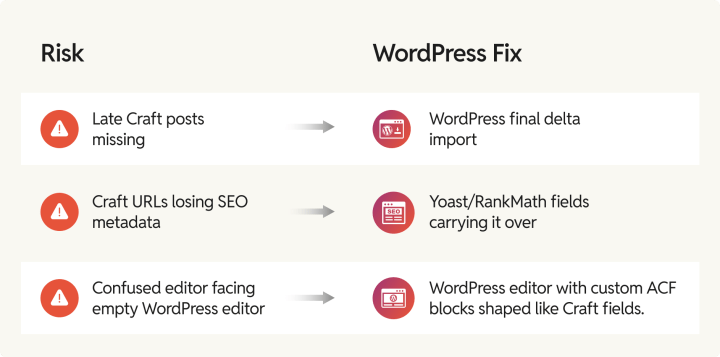
Three failure modes appear repeatedly across Craft CMS to WordPress migrations. All three are entirely preventable.
Content missing at launch
Editors keep publishing to Craft CMS during the migration. Any content published after the final import run won’t exist on WordPress at launch unless you plan specifically for it. The fix is a defined content freeze window, typically 24–48 hours before the DNS switch, followed by a targeted final import. For newsrooms and high-frequency publishers who can’t freeze, a live-cutover approach requires two engineers coordinating simultaneously at the moment of switch.
Search rankings that don’t recover
An incomplete CMS SEO migration changes URLs without setting up proper redirects and leaves SEO metadata behind in the old database. A well-managed migration preserves both. The stabilization window is typically two to four weeks. When recovery takes months, something was missed.
Editors who reject the new platform
WordPress’s block editor is different from Craft CMS’s structured-fields approach. Editors reject platforms they were not prepared for. Teams that migrate without investing in custom blocks tailored to their editorial workflow should expect frustration on day one. The same goes for teams that skip a parallel period where editors practice on the new platform before they are fully dependent on it. The fix is giving editors time and a familiar interface before the pressure of full dependence sets in.
None of these are surprises. They’re known variables that will be planned for or ignored.
Before any work starts: The audit
The single most common cause of scope creep in a Craft CMS migration is underestimating what’s on the site. Craft CMS’s architecture is expressive because it lets developers build exactly the content model a project needs, which means every installation is different. A site that looks simple from the outside can have significant structural complexity once you look closely: nested block configurations, cross-section relationships, custom fields on assets, and per-section permissions.
Here’s what the audit covers:
- Content types and structure: Every section, its URL format, and how editors actually use it day to day.
- Fields: Every custom field, its type, and what real data looks like in production entries. Both the field handle and the actual data format require checking against live content, not just the control panel definition.
- Page-builder block configurations: This is the most complex part of most Craft CMS sites. Nested block structures require special handling and are more common than they look from the outside.
- Related content: This examines which content types link to others. These have a specific import sequencing requirement that, if missed, breaks relationship data.
- Asset volumes and transforms: Where media files live, what crop variants exist, and whether assets have custom fields attached.
- Plugins: This lists every installed plugin, what it does, and what replaces it in WordPress. This becomes the replacement shopping list.
- User groups and permissions: This is a list of who can do what and on which content types. This becomes the specification for rebuilding access controls.
- Draft content: Unpublished drafts don’t migrate. Any draft representing planned content needs a decision before the freeze window: publish it in Craft CMS so it migrates, or accept that it needs to be recreated after launch.
- Search usage: Template queries using Craft’s native search need WordPress replacements. Finding them in the audit saves hours of discovery mid-rebuild.
- Full URL crawl: Every URL on the live site is exported before a single change is made. This list is the foundation of the redirect audit.
rtCamp’s Craft CMS to WordPress migration service covers all the steps in the process, from content model translation and custom import scripting to template rebuilds, SEO preservation, and QA validation.
Content architecture: Translating Craft’s structure to WordPress
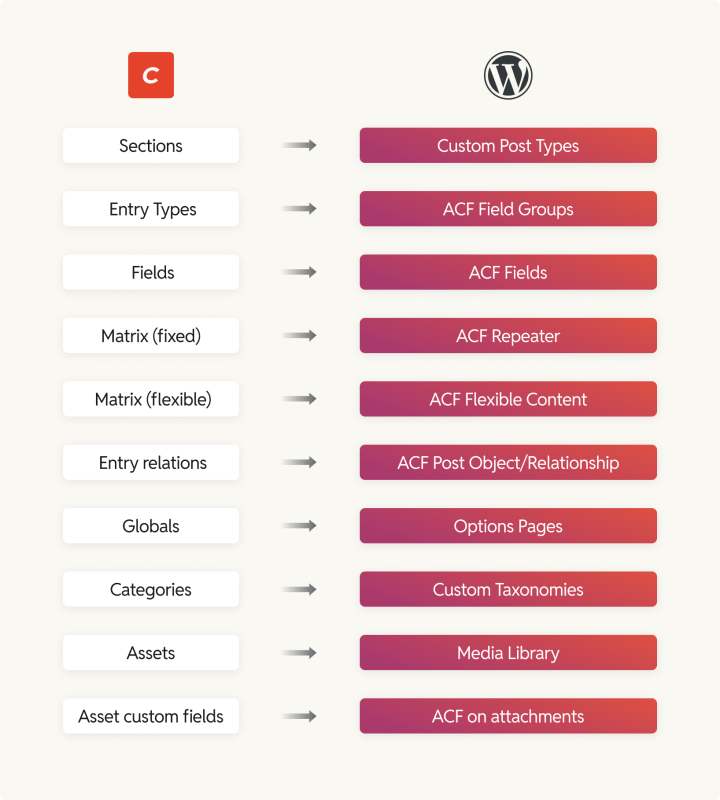
This is where the conceptual work happens. Before any content is migrated, every Craft CMS structural concept needs a WordPress equivalent. Get this mapping right, and the rest of the migration follows from it.
Sections → Post Types
Craft CMS organizes content into sections, while WordPress organizes it into post types, making the migration direct.
A channel used for blogs, news, articles, case studies, and events, becomes a custom post type (CPT). A single one-off page, like a homepage or contact page, becomes a WordPress page or, occasionally, a CPT with a single entry if custom fields are needed. A structure, hierarchical content with parent-child relationships, becomes a hierarchical CPT with WordPress’s built-in parent-page functionality.
The important detail at this stage is URL structure. If your Craft CMS news section uses /news/article-slug, the WordPress CPT needs a matching URL prefix. Otherwise, every article URL changes, redirects multiply, and SEO risk increases unnecessarily.
Entry Types → Field Groups
Within a section, Craft CMS’s Entry Types define which fields appear for different kinds of content. A “News” section might have three entry types, a standard article, photo essay, and video report, each with a different field layout.
In WordPress, this is handled through ACF Field Groups with conditional logic. A select field on the post controls which field groups are visible. In Craft 5, entry types are global by default, so the same entry type can appear across multiple sections and inside Matrix fields. The WordPress equivalent is a shared ACF field group assigned to multiple post types at once.
Fields → ACF
Most Craft CMS field types have clean WordPress equivalents through Advanced Custom Fields. The translation table below covers the full range:
| Craft Field Type | WordPress/ACF Equivalent |
| Plain Text | ACF Text |
| Dropdown | ACF Select |
| Checkboxes / Radio Buttons | ACF Checkbox / Radio Button |
| Lightswitch (toggle) | ACF True/False |
| Number / Date / Colour / URL / Email | Direct ACF equivalents |
| Rich Text (CKEditor / Redactor) | ACF WYSIWYG or Gutenberg block editor |
| Assets (single / multiple) | ACF Image / ACF Gallery |
| Entries (single relation) | ACF Post Object |
| Entries (multiple relations) | ACF Relationship |
| Categories | Taxonomy field |
| Users | ACF User |
| Table | ACF Repeater |
| Matrix (fixed blocks) | ACF Repeater |
| Matrix (flexible blocks) | ACF Flexible Content |
| Neo / Super Table | ACF Flexible Content / ACF Repeater |
Two of these need more than a table row.
Rich text and shortcodes
Craft CMS’s rich text fields output HTML that migrates directly since the format is portable. The exception is any content where a plugin injected shortcode-style strings inside the editor. These arrive in WordPress as literal text ( displayed as text, not rendered as a gallery) because no matching shortcode is registered. Before migration, audit the database for [ characters in rich text columns. Each pattern either needs a WordPress equivalent registered, or the content is transformed to plain HTML during import. Undiscovered shortcodes are the most common source of “broken content” reports on launch day.
Matrix/page-builder blocks. This is the most complex translation in the guide. Craft CMS’s Matrix defines flexible block types, each with named sub-fields, that editors use as a page builder. ACF Flexible Content is the conceptual equivalent. The concepts match, but the data format doesn’t migrate automatically.
Each block type needs to be manually recreated as an ACF Flexible Content layout, and the import script must transform Craft CMS’s block data, stored across multiple database tables, into ACF’s serialized format. For sites where the block builder was the primary content mechanism (which is most Craft CMS sites), budget two to three days specifically for this translation work. Test on 10% of the content before running the full import.
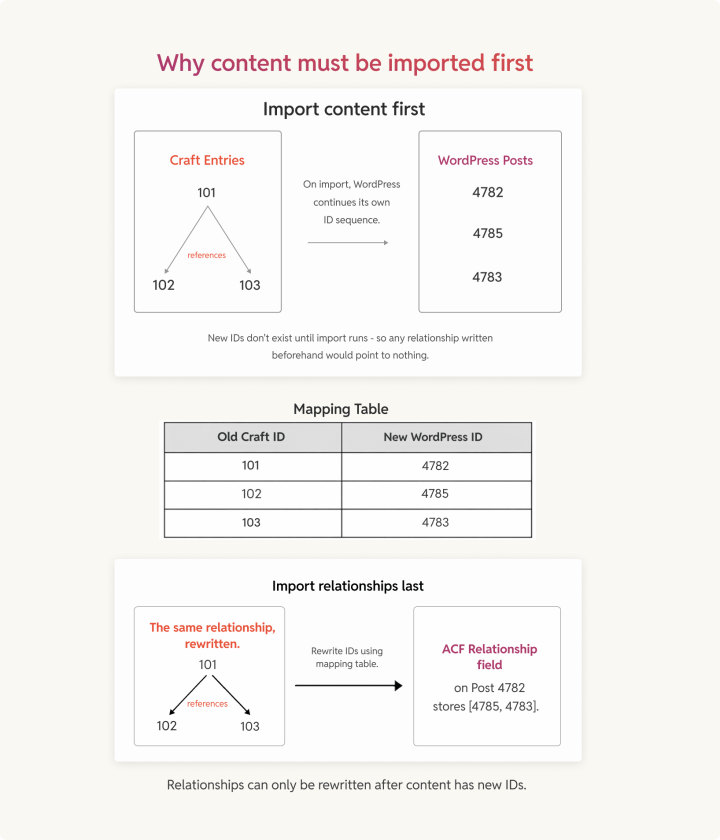
Related content requires a two-pass import
Craft CMS’s Entries field creates typed relationships between content types, an article to authors, and an event to a venue. In WordPress, these become ACF Post Object or Relationship fields. There’s a sequencing requirement that’s easy to overlook: relationships can only be imported after both the source and target posts already exist in WordPress. This means a two-pass approach with flat content first, then relationships using a mapping table that connects old Craft CMS IDs to new WordPress IDs. If you skip this, relationship data will break behind the scenes.
Globals → Options Pages
Craft CMS Globals are site-wide settings: footer text, phone numbers, and social handles, which are accessible in every template. The WordPress equivalent is an ACF Options Page with an admin panel section backed by the WordPress options table. Register one options page per logical group, i.e., site settings, footer, and social media, and recreate the fields there.
Scheduling and expiry
Craft CMS’s entry statuses are computed in real time from post dates and expiry dates. Craft CMS simply starts or stops returning entries based on the current timestamp.
WordPress handles scheduled publishing through WP-Cron, a scheduling system that only runs when someone visits the site. On low-traffic sites, a post scheduled for 9am might not publish until significantly later. For any site where timing matters, WP-Cron’s default page-load trigger needs to be replaced with a proper system cron job. This is a server configuration step that needs to happen before launch.
Content expiry dates have no native WordPress equivalent. PublishPress Future adds per-post expiry actions that fire via the scheduling system; import your Craft CMS expiry values as part of the migration run and configure the scheduler before going live.
Drafts and revision history
Craft CMS allows multiple named drafts on a single live entry simultaneously. “Homepage: Q3 Campaign” and “Homepage: Conference Week” can coexist as separate staged versions. WordPress supports one pending draft per post.
Most editors will not mind this change. In teams where multi-draft staging was genuinely part of the workflow, PublishPress Revisions adds a closer equivalent to the Craft CMS behavior, with an approval workflow.
Two things need explicit decisions before the migration begins.
- Draft content does not migrate: Craft CMS drafts carry a separate status and are skipped by standard exports. Any planned content held as a draft needs to be either published in Craft CMS before the freeze window or recreated in WordPress after launch.
- Revision history does not migrate: WordPress builds its own trail from import day. For organizations with audit-trail compliance requirements, this needs formal acknowledgement.
Note: WordPress stores unlimited revisions by default. On a high-volume editorial site, this inflates the database over time. Set a reasonable cap in wp-config.php early. Ten revisions per post is a sensible default.
Getting content out of craft
To migrate Craft CMS to WordPress, there’s no single “export” button. The data is stored in a relational database and needs to be extracted deliberately. There are three viable paths:
- Using the REST API is the cleanest approach for Craft CMS Pro sites. The API returns structured JSON that mirrors the field schema exactly: entries, fields, relations, assets, categories, and users. It is stable across versions, and pagination is predictable. The free Element API plugin extends this to expose custom endpoints for any content type if you need more control.
- Direct database query is necessary for large sites, sites without API access, or where API pagination would be prohibitively slow. Craft CMS’s schema spreads field data across multiple tables such as
entries,content,relations, andmatrixblockson Craft 3 and 4 (the actual table names depend on your configured prefix). Craft 5 restructured this significantly by converting Matrix blocks into entries, so thematrixblockstable is gone and that content now lives in the standard entry tables. Check your version before writing queries. - The use of native export and CSV works for simpler sites: flat content types, minimal custom fields, and no nested blocks. For anything more complex, the CSV path requires so much transformation work that the API approach ends up faster.
Importing into WordPress
WP All Import Pro is the standard tool for structured imports. It handles custom post types, ACF fields, taxonomies, and custom meta. The Pro license starts at $149 per year for the Developer tier, with WooCommerce and ACF add-ons included in the Professional tier. However, other custom import options can be explored as there is no one-size-fits-all approach to Craft CMS to WordPress content migration.
Sequence matters here. Getting the order wrong breaks relationship data:
- Taxonomies: categories, tags, custom taxonomies. Everything else references them.
- Users: Author records before any content that references them.
- Media: Files transferred and registered in the media library.
- Flat content: Posts and pages with no relations to other posts.
- Relational content: Anything with post-to-post links, which requires target posts to already exist.
- Site-wide settings: Global fields and options page data.
- Navigation menus: Last, when all the content they reference exists.
For large imports, run in batches of 500 and check the error log between batches. Errors that accumulate across a large run are harder to diagnose than ones caught at batch boundaries.
Media, assets, and video
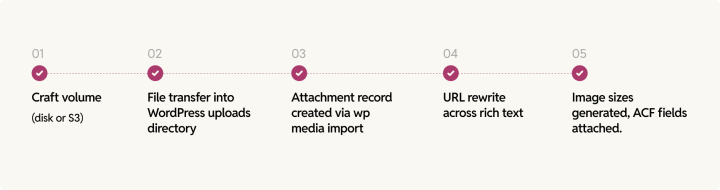
Media migration has more surface area than it appears. It’s file transfer, media library registration, URL rewriting, image crop configuration, custom field translation, and folder structure decisions. None of it can be automated.
Moving and registering files
Craft CMS stores assets in volumes on-disk or in cloud storage like S3, Google Cloud Storage, or Cloudflare R2. WordPress expects media in its uploads directory structure.
Moving files is step one. Step two is making WordPress aware of them. Transferred files don’t appear in the media library until attachment records are created for each one, which also triggers WordPress to generate the registered image sizes. WP-CLI’s wp media import handles this in bulk.
Step three is URL cleanup. Rich text content that referenced Craft CMS asset paths needs those URLs updated to point to WordPress’s new paths. A database find-and-replace handles this, but it must run after media records exist, not before. On multisite installs, this command needs a --network flag, or it silently skips all subsites except the current one.
Image crops and focal points
Craft CMS’s named images transform: hero, thumbnail, card, and og-image each become an add_image_size() call in the WordPress theme. Crop modes translate directly: Craft’s crop mode is WordPress’s hard crop; fit is proportional.
What doesn’t translate is focal points. Craft CMS has a built-in focal point editor that controls how images are cropped when the subject isn’t centered. WordPress has no native equivalent. Existing focal point data doesn’t transfer crop positioning defaults to center. For sites where subject positioning matters, like portrait photography and product shots, the ACF Image Aspect Ratio Crop plugin adds this capability, and critical crops need to be rebuilt.
Custom fields on assets
Craft CMS treats assets as first-class content elements. You can attach custom fields directly to them. Photo credits, licensing terms, expiry dates, and a relation to a photographer’s profile. WordPress’s native media library has four built-in fields: title, caption, alt text, and description. Everything else requires ACF assigned to the attachment post type.
The mapping is straightforward. Extract asset custom field values alongside asset records during the extraction phase, and import them as attachment post meta during the media import step.
Media organization
Craft CMS’s folder system, nested hierarchies within a volume, is one of its genuine UX advantages. Editorial teams use those folders to keep the asset library navigable over years of uploads. WordPress’s native media library is flat, organized by upload date, with no folders.
For teams coming from a well-organized Craft CMS asset library, this will feel like a regression. WP Media Folder adds a full folder tree to the media library interface. Taxonomy-based tagging lets teams organize and filter programmatically. The right choice depends on whether editors navigate folders to find assets or search by keyword.
Video and GoDAM
Craft CMS has no native video infrastructure. Most Craft CMS sites stored video as a URL or embed code pointing at Vimeo, Wistia, Mux, or Cloudflare Stream. Those URL fields migrate cleanly because they’re just text.
The migration is an opportunity to reconsider whether that third-party dependency is still the right architecture. GoDAM, built by rtCamp, is a video platform purpose-built for WordPress. It handles transcoding on upload, delivers via adaptive bitrate streaming through a global CDN, and adds interactive layers to videos through in-video CTAs, lead capture forms, hotspots, polls, and analytics, all managed from inside WordPress rather than a separate dashboard. For organizations where video is a significant content type, consolidating on GoDAM simplifies operations post-migration.
Rebuilding templates
Templates don’t migrate. There’s no converter from Craft’s Twig to WordPress PHP, and building one would produce unmaintainable code. A clean rebuild is faster and produces better results.
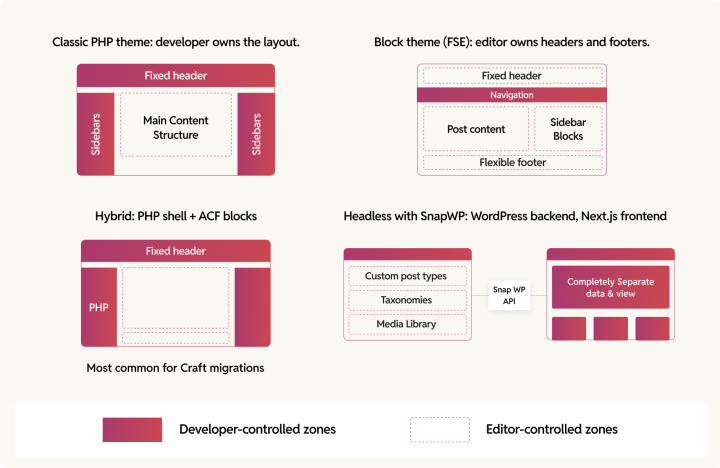
Choosing Your Frontend Architecture
This decision shapes everything else. Make it before anyone writes a template file.
- The classic PHP theme is a familiar approach for developers coming from Craft CMS’s Twig templates background. It includes template files, PHP functions, and component includes. It is faster to build and has a lower risk on a migration where parity with the existing site is the goal.
- Block theme (Full Site Editing) gives editors control over page structure: headers, footers, and archive layouts without developer involvement. Right for greenfield builds or when reducing editorial dependency on engineering is a primary objective. For migrations, it requires significantly more upfront block development.
- Hybrid is the most common pattern for Craft CMS migrations: a classic PHP theme for the outer structure and custom ACF blocks for the content areas editors manage. Developers control the layout; editors control the content blocks. This mirrors how most Craft CMS sites actually work and carries the lowest migration risk.
- Headless with SnapWP is for teams migrating a Craft CMS site that already deployed headless Craft CMS as a content API, React or Next.js on the front end. WordPress replaces Craft CMS as the backend while the frontend stays largely intact. SnapWP, rtCamp’s open-source headless WordPress framework, uses WordPress’s block theme as the source of truth for design and routing. Default blocks, global styles, and template hierarchy work out of the box, and developers write custom code only for components that genuinely need it.
For teams currently running Craft CMS headless, SnapWP materially reduces the cost of the frontend rebuild compared to a fully bespoke WPGraphQL integration.
Template pattern reference
The mental model carries over between Twig and PHP. You’re still querying content, looping through results, outputting fields, and writing conditionals. The syntax is different, but the structure is still recognizable.
Craft CMS’s craft.entries.section('news').all() becomes WordPress’s WP_Query with a post type argument. Twig’s {% for %} becomes PHP’s while (have_posts()). Field output shifts from {{ entry.fieldHandle }} to get_field('field_name').
The learning curve is a week or two of reference-checking.
Plugin replacements
Every Craft CMS plugin needs a WordPress equivalent. Direct matches exist for most of them, and a handful need thought.
| Craft Plugin | WordPress Replacement | Notes |
| SEOmatic | Yoast SEO or RankMath | SEOmatic stores per-entry metadata in its own DB tables. Extract titles, descriptions, and og:image values and import them as Yoast post meta; don’t rely on auto-generation. |
| Sprout SEO | Yoast SEO or RankMath | Same extraction approach. |
| Formie / Freeform | Gravity Forms | Export form submission history from Formie’s control panel before decommissioning. |
| Comments by Verbb | WordPress native comments | Built-in: threading, moderation queues, Akismet spam filtering. Import existing comments via WXR format. |
| Retour (redirects) | Redirection plugin | Export Retour rules as CSV. Column headers need renaming (legacyUrl → source, newUrl → target) before Redirection import. Regex rules need the Regex flag checked per row. |
| Blitz (static caching) | Infrastructure-level caching | On WordPress VIP, Kinsta or Pagely, full-page caching is handled at the server layer. On standard hosting, WP Super Cache or W3 Total Cache will have you covered. |
| Verbb Workflow | PublishPress | Maps directly: Editor submits → Publisher reviews and approves. Configure user roles before setting up the workflow rules. |
| Craft’s native GraphQL | WPGraphQL | Mature, widely adopted. Covers CPTs, taxonomies, and ACF fields. The schema differs from Craft CMS’s, but the API surface is equivalent. |
| Element API | WordPress REST API | Native to WordPress. Custom endpoints registered with register_rest_route(). |
Search needs specific attention
Craft CMS indexes every field an editor has marked as searchable in its field settings, which on most sites is nearly every field. WordPress’s native search covers only post titles and body content; custom fields are invisible to it.
If your Craft CMS site used search across custom fields (event metadata, team member bios, product details), this gap will appear on launch day. SearchWP is the standard solution for custom field search in WordPress. For Elasticsearch deployments, ElasticPress replaces WordPress’s default search layer entirely.
Whichever you choose, the search index needs to be built and validated before launch. A misconfigured or unbuilt index fails silently; WordPress falls back to native search without an error, and users just see empty results. Verify the index is complete before any editor training.
Commerce needs its own sprint
Commerce migrations are harder than content migrations and deserve separate scoping.
- Product names, descriptions, SKUs, prices, categories, and images migrate cleanly.
- Product variants and pricing rules require scripting.
- Tax rules and shipping configurations need manual reconstruction.
- Active subscriptions, saved payment methods, and custom discount logic built as Craft Commerce behaviors cannot be migrated; customers re-enroll, re-enter payment details, and receive communication from the team in advance.
Budget a dedicated sprint for Commerce. Running it in parallel with the content migration is fine; treating it as a subset of the content migration is where projects get into trouble.
Developer workflow after the migration
One of the things developers genuinely miss when leaving Craft CMS is Project Config. Schema changes (adding a field, modifying a content type) write to version-controlled YAML files that any environment can apply with a single command. WordPress has no direct equivalent.
The WordPress approach is a combination. ACF Pro writes field group definitions to an acf-json/ directory as JSON files. Commit those to Git, and other environments pick them up automatically on load. Post types, taxonomies, and options pages get registered in code and applied via WP-CLI scripts. It requires more explicit discipline than Project Config, but it achieves the same results.
The other adjustment worth naming: Craft CMS templates enforce a clean separation between logic and markup. WordPress PHP themes can blur that separation quickly. Structure the WordPress theme in the same way. Developers who carry that discipline across end up with WordPress code that’s easily maintainable.
User permissions
Craft CMS Pro’s permission system is section-scoped. A user group can create entries in one section but not another, save drafts without publishing, or view without editing. WordPress’s default roles apply globally across all post types.
Replicating section-level permissions requires registering custom capabilities per post type and assigning them to roles. The Members plugin handles this cleanly. PublishPress Capabilities adds finer-grained control for editorial workflow permissions.
Everyone’s passwords reset on launch day, Craft CMS and WordPress use different hashing schemes, and there’s no migration path. Send the bulk reset email the moment the site goes live, not the day after.
SEO preservation
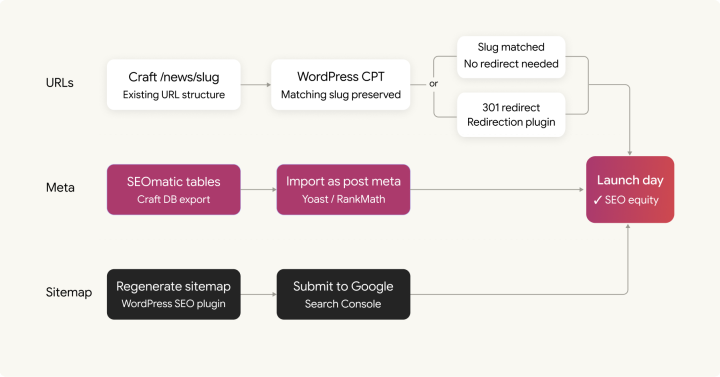
Organic search traffic is often the most valuable thing a site has built over time. It’s also what’s most at risk during a CMS SEO migration if the work is treated as a technical detail rather than a proper workstream.
The goal is straightforward in principle: every URL that search engines have indexed resolves to the same address on WordPress, or returns a permanent (301) redirect. Every page’s metadata, title, description, canonical tag, and social tags will be transferred intact. The sitemap is accurate and submitted to Google on launch day.
URL structure
If your Craft CMS site used /news/article-slug, the WordPress post type needs to be configured with the same prefix. If your categories used /topics/category-slug, the WordPress taxonomy slug needs to match. These are configuration decisions at the start of the build, not redirect decisions at the end.
The rule: do not change URL structures during the migration. A migration is already an SEO event. Adding a URL restructure makes it a larger one. Any structural changes should happen as a separate project, weeks after the migration has stabilized.
Where URLs genuinely must change, every one needs a 301 redirect. For sites with hundreds of redirects, the Redirection plugin works well. For sites with thousands, server-level redirect rules in Nginx or Apache perform better; plugin-managed redirects add a database query to every page load, which compounds at scale.
Metadata transfer
If your Craft CMS site used SEOmatic, per-entry titles, descriptions, and social tags are stored in SEOmatic’s own database tables, they don’t move automatically. Extract them by query, then import them as Yoast or RankMath meta fields during the content import run. Do not rely on your SEO plugin to regenerate metadata at launch. Metadata crafted and optimized over years is not something an auto-generation algorithm recreates accurately.
Before launch: verify the sitemap generates at the correct URL, check canonical tags on paginated pages, test structured data with Google’s Rich Results Test, and confirm robots.txt is not blocking crawlers. Staging environments routinely have Disallow: / in robots.txt and it gets left in on launch; this is common but fully preventable.
Multisite and localization
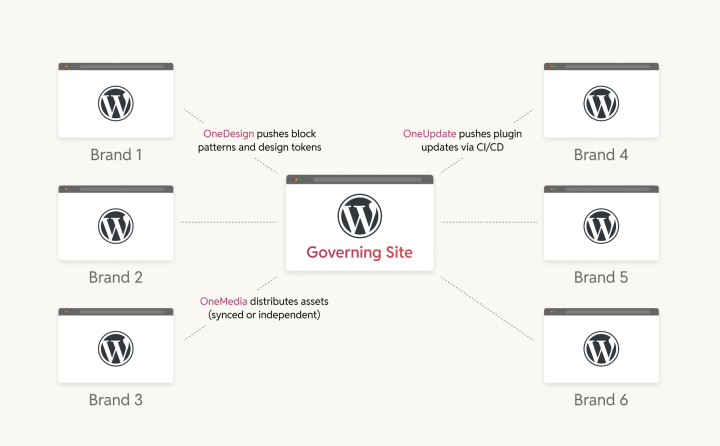
Craft Multisite and WordPress Multisite are similar. Both serve multiple sites from a single installation, support shared or per-site content, and handle the full range of URL configurations: subdomains, subdirectories, and separate domains.
For localized content, the migration is a three-stage process: import source-language content, import translated content, and link translations to their source posts using WPML’s language association functions or Polylang’s equivalents. The linking step is what many guides skip. Without it, translated posts exist in WordPress but aren’t connected, and the language switcher doesn’t work.
Field-level translation control is handled differently. Craft CMS lets individual fields be marked as per-site or shared. WPML handles this through per-field-group “Copy” vs. “Translate” settings: configure these before the import, not after.
Match your Craft CMS URL configuration when setting up WordPress Multisite. The choice between subdomain and subdirectory is made at network setup, and converting between them later is painful enough to warrant getting it right from the start.
Enterprise multi-brand networks
For any organization migrating a Craft Multisite that serves multiple distinct brands or business units, WordPress Multisite is the infrastructure layer, not the complete solution. Governance challenges (shared design systems, centralized plugin management, cross-brand content distribution) require an orchestration layer on top.
OnePress is rtCamp’s framework for this. A centralized governing site houses shared templates, block patterns, and design logic. OneDesign synchronizes those components to every brand site automatically. OneUpdate manages plugin updates across the network via CI/CD pipelines. OneMedia lets teams upload assets once to the governing site and distribute them to connected brand sites, either as synchronized copies that update everywhere or as independent copies that individual brands control.
Each brand site retains its identity, content types, and editorial workflows. The shared infrastructure operates underneath. This is the architecture behind the Cox Automotive and Private Media consolidations that rtCamp accomplished.
If the migration lands more than three or four brand sites on WordPress, scope OnePress into the architecture conversation before the first subsite is built. Adding a governance layer to an already-live network is much harder.
Quality assurance and launch
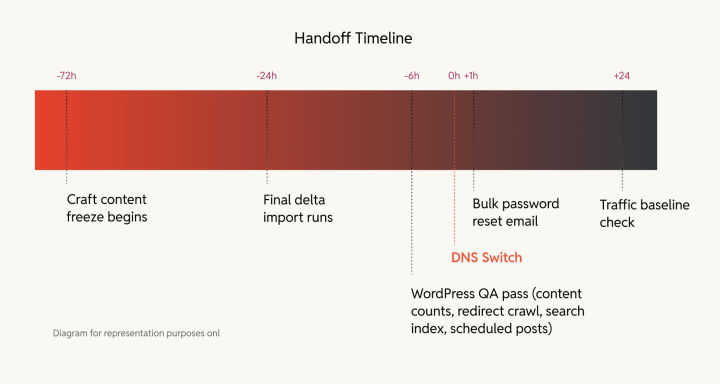
The QA phase is where migrations succeed or fail visibly. Everything done in previous phases either holds up here or reveals a gap. Run these checks before the DNS switch.
- Content completeness: Count posts in WordPress by content type against your Craft CMS audit numbers. Spot-check 10% of posts across each type for field completeness; empty custom fields where Craft CMS had values indicate a transform script error.
- Media. Count attachment records against your Craft CMS asset count. Verify images render correctly, alt text and captions are transferred, and asset custom fields are populated where they should be.
- Redirects. Seed a site crawl with your original Craft CMS URL list and run it against the WordPress staging environment. Every Craft URL returns either a 200 (URL preserved) or 301 (URL changed with a redirect). A 404 is a gap. Find every one before launch.
- Broken internal links. Rich text fields often contain hard-coded references to the old Craft CMS domain that survived URL replacement. A broken-link report from a site crawler finds them.
- Scheduling. If the site has scheduled content, verify imported posts with future dates have the correct WordPress future status, and confirm the scheduling system is configured and firing correctly. Test with a post scheduled five minutes ahead.
- Roles and permissions. Log in as a representative user from each migrated group and confirm access. Do this before editor training, not after.
- Search. If the site uses SearchWP or ElasticPress, run five representative queries that would have returned results on Craft. Confirm the same content surfaces in WordPress. The silent-failure behavior of a misconfigured index is covered in the Search section above.
The content freeze and final import
This is the most overlooked step in a typical migration plan. The main import captures content up to a specific point in time. Anything published or edited in Craft CMS after that snapshot won’t exist on WordPress at launch unless you plan for it. The solution is a content freeze window, typically 24–48 hours before the DNS switch, during which no new content goes to Craft. A targeted final import runs in that window to capture everything since the last full run.
For high-frequency publishers who can’t freeze, a live-cutover approach handles this: the main migration runs ahead of time, Craft CMS stays live as the origin up until the DNS switch, and a final delta import runs at the exact moment of cutover. Two engineers coordinating simultaneously: one on the import, one watching DNS propagation.
Parallel operation
Two weeks before launch, both platforms run simultaneously. Editors publish to both; double effort, worth it. This period catches editorial workflow issues, template edge cases that only surface with real content, and functional gaps in custom blocks before the team is fully dependent on the new platform. The SEO team establishes a traffic baseline on Craft CMS during this period. That baseline is the comparison benchmark at two, four, and eight weeks post-launch.
How rtCamp can help
rtCamp has completed over 300 migrations in 17+ years. The methodology has not changed dramatically: audit first, content model second, import third, validate extensively. The toolchain and the known failure modes sharpen with every project.
Our Craft CMS to WordPress engagements will start with a 20-hour scoping session at no charge before any commitment is made. That session produces a complete complexity assessment, a scope document, and an honest timeline estimate. It’s also where we tell clients things they might not want to hear: that the block configuration is more complex than it looks, that Commerce needs a separate sprint, or that the URL structure is going to cost them a month of redirect mapping. If you’re still building your shortlist, these are the questions to ask migration experts before signing.
The full workstream involves content model translation, custom import scripting, template rebuild, plugin replacement, SEO preservation, redirect mapping, media transfer, QA validation, and parallel-operation monitoring. Commerce runs as a separate workstream with dedicated WooCommerce engineers.
For specific capabilities that come into scope post-migration:
GoDAM: video asset management built for WordPress. Transcoding, CDN delivery, adaptive streaming, and interactive video layers are managed from inside WordPress rather than a separate platform.
SnapWP: rtCamp’s open-source headless WordPress framework on WPGraphQL and Next.js. For teams migrating a Craft CMS headless deployment who want a principled path to WordPress without rebuilding the entire frontend.
OnePress: multi-brand WordPress governance. For migrations landing multiple brand sites on WordPress Multisite: shared design system, content hub, cross-site media distribution via OneMedia, and plugin governance.
If you’re evaluating whether to migrate Craft CMS to WordPress, the scoping session is the right next step.
On this page


Leave a Reply