








Extending the WordPress AI PluginReleasing Connectors for OpenRouter, LM Studio & Universal OpenAI
The WordPress AI plugin maintained by the official WordPress AI Team gives the ecosystem a unified foundation. And as it heads toward integration with WordPress 7.0 Core, we wanted to make sure the connector layer was open, model-agnostic, and ready for production.
Today we’re releasing three connectors that plug directly into that foundation: Connector for OpenRouter, Connector for LM Studio, and the Universal OpenAI API Connector. Together they bring hundreds of AI models – commercial, open-source, and self-hosted into WordPress through a single, consistent dashboard.
This post walks through what each connector does, why it is relevant for the WordPress 7.0 transition, how OpenRouter changes the cost equation for content-heavy sites, a real client case study from our work, and finally a setup guide for each connector.
Why this matters now: WordPress 7.0 and native AI
The WordPress AI Plugin is not a typical third-party add-on. It’s an official project from the WordPress AI Team designed to live inside WordPress as a standardized AI layer. Rather than every plugin author writing bespoke code to call OpenAI, Anthropic, or Gemini, the AI plugin exposes a common interface, a set of “AI Building Blocks” that themes and plugins can build on.
The architecture rests on four pillars: the PHP AI Client SDK, Multi-Provider Connectors, the Abilities API, and the MCP Adapter
Why WordPress 7.0 changes this
The PHP AI Client SDK and the connector architecture are being prepared for integration into WordPress Core 7.0. Once that ships, you won’t need a separate SDK plugin; the AI routing layer becomes native to WordPress. Our connectors are built on that same SDK, which means they’ll continue to work after the upgrade with zero code changes. You’ll simply deactivate the SDK plugin and carry on.
Many agencies we engage with are hesitant to adopt AI tools in 2026, fearing they will need to discard everything when 7.0 is released. Our architecture, however, ensures that the work you implement now will seamlessly transition and remain relevant in the future.
What the WordPress AI Plugin already does
Before we get into our connectors, it’s worth understanding what the AI plugin gives you out of the box. As of version 0.5, the core feature set covers most of the AI workflows we see clients asking for:
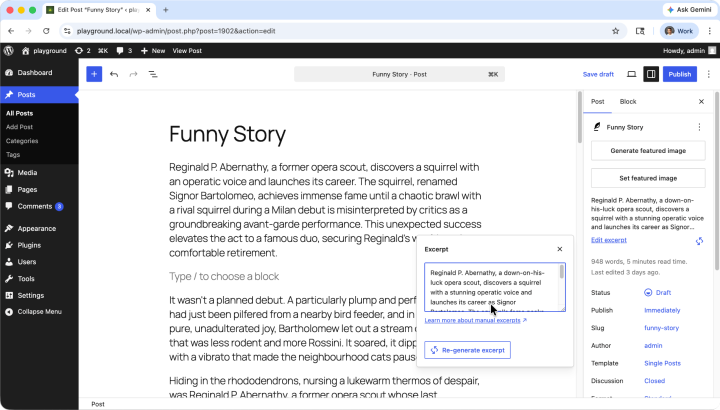
- Content generation: Auto-generates post titles, excerpts, summaries, and meta descriptions from existing content. The excerpt regenerator alone has saved our editorial teams hours per week staring at a blank excerpt field for a 2,000-word article is a familiar pain.
- Content classification: Adds AI-powered tag and category suggestions directly into the post editor’s sidebar panels. Once you’ve drafted around 150 words, it analyzes your content and generates relevant taxonomy terms as clickable pills. You can configure it to suggest strictly from your existing terms or allow it to invent new ones (distinguished by a “new” badge), complete with support for parent/child category relationships.
- Review notes: Block-by-block contextual analysis covering accessibility, readability, grammar, and SEO. This is not a generic spell checker; it understands WordPress block structure, so feedback is scoped to the block you’re editing rather than the whole document.
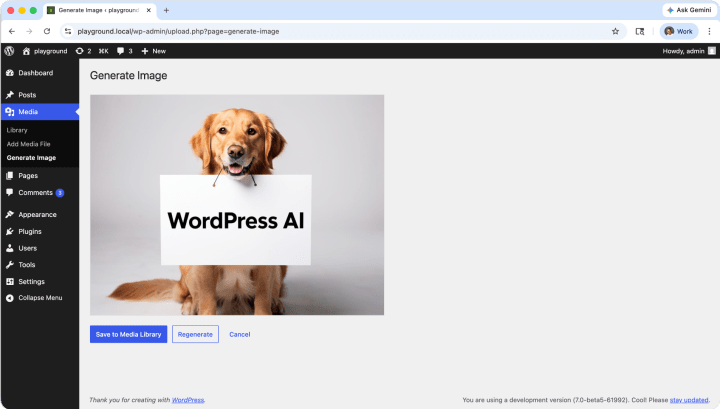
- Image tools: Text-to-image generation directly inside the block editor and the Media Library, plus AI-powered Alt Text generation using vision models. The alt text generator is genuinely a quiet accessibility win where every uploaded image gets a sensible description without an editor having to think about it.
- Abilities Explorer: A developer dashboard at Tools → Available Tools that lists every registered AI capability on your site, with View and Test actions for each. If you’re building custom features or debugging an integration, this is where you live.
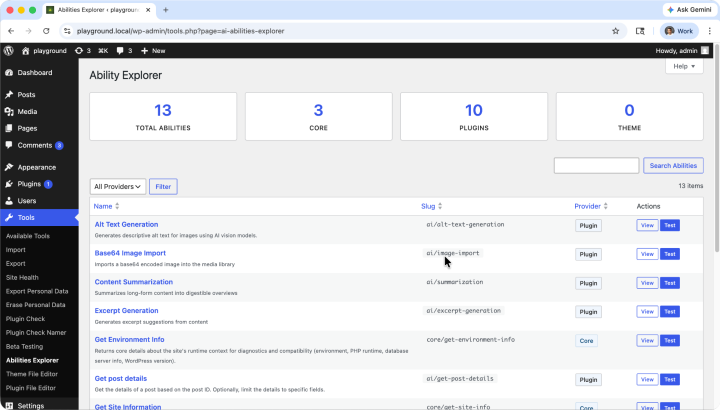
All of this functionality is provider-agnostic. The plugin defines the abilities; the connectors decide which model answers them.
Our three connectors
A connector, in this architecture, is a small plugin that implements the standardized PHP AI Client SDK interface. It tells the core AI plugin how to authenticate with a provider, how to translate WordPress requests into the provider’s API format, and how to surface the results back to WordPress.

Here’s how the three compare at a glance:
| Connector | Best For | Privacy | Cost Model |
|---|---|---|---|
| Connector for OpenRouter | Production sites, agencies, multi-model routing | Cloud (provider TOS applies) | Pay-per-token, free tier available |
| Connector for LM Studio | Local development, GDPR-sensitive content, offline workflows | 100% local, never leaves the machine | Free (hardware cost only) |
| Universal OpenAI Connector | Self-hosted Ollama, Groq, Mistral, and custom endpoints | Depends on endpoint chosen | Depends on the provider. |
1. Connector for OpenRouter
OpenRouter is a unified API gateway that aggregates hundreds of models from OpenAI’s GPT-4o, Claude Sonnet to Google’s Gemini, Meta’s Llama, and a long tail of open-source and experimental models behind a single OpenAI-compatible endpoint. Our Connector for OpenRouter plugs that gateway into the WordPress AI plugin so you can swap models per task without juggling separate API keys.
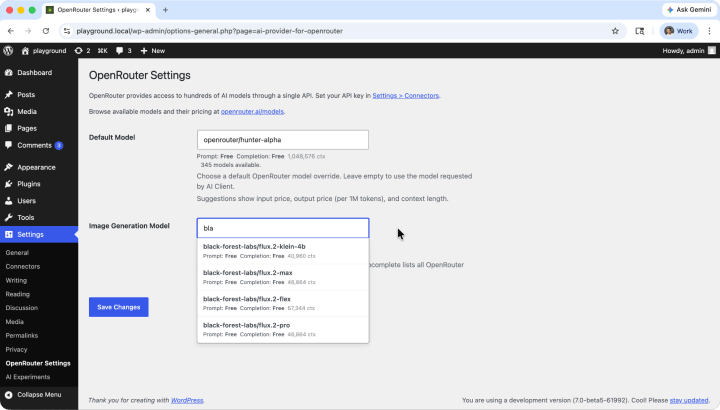
Why we built this one first: cost. Most production WordPress AI workloads are not running PhD-level reasoning. They’re generating excerpts, alt text, and tags. Routing those tasks to a free or low-cost $0.10/1M tokens model rather than a flagship $5/M model can cut your monthly AI bill by 90% or zero cost with no perceptible quality difference for the use case.
2. Connector for LM Studio
LM Studio is a desktop application that downloads and runs open-source LLMs locally on your hardware, exposing them through an OpenAI-compatible API on localhost. Our connector treats that local server like any other AI provider, which means content, prompts, and outputs never leave your network.
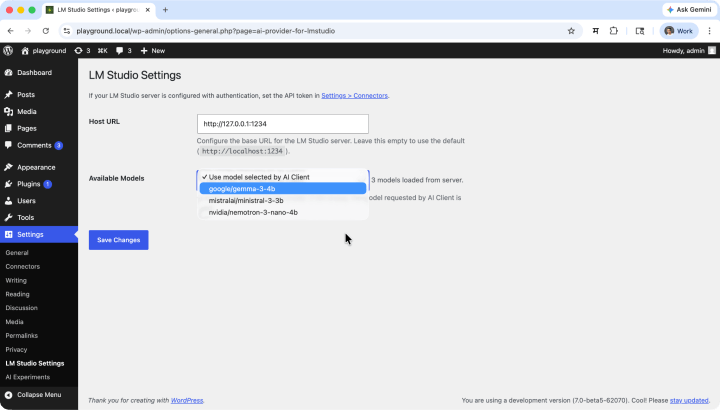
This is the connector we reach for when a client has GDPR-sensitive content, a financial services compliance team, or a strict no-data-leaves-the-building policy. It’s also our default for development environments; you can iterate on AI features without burning through API credits.
3. Universal OpenAI API Connector
The third Universal OpenAI API Connector is the escape hatch. Any service that exposes an OpenAI-compatible REST API, such as Ollama, Groq, Together AI, Mistral AI, Fireworks, a custom fine-tuned endpoint, or OpenAI itself, can be configured by changing one URL in the WordPress admin. The connector queries the /v1/models endpoint of whatever you point it at and populates the model dropdown automatically.
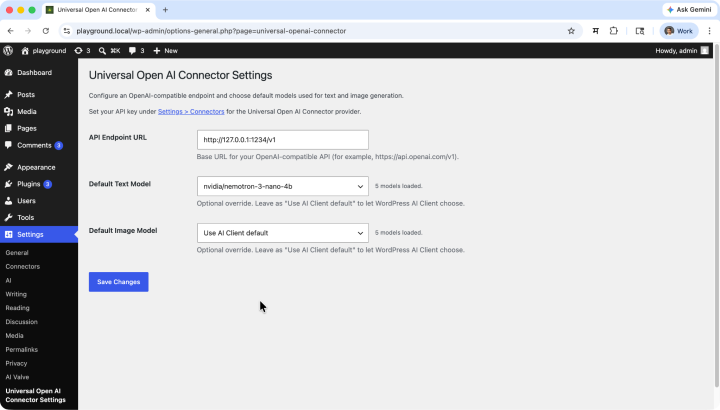
If you’re migrating between providers, A/B testing endpoints, or running self-hosted infrastructure alongside a cloud fallback, this is the connector that gives you that flexibility without code changes.
What’s our plus: How our connectors stand out
Plenty of WordPress plugins claim to integrate with AI providers. Here’s what we put into ours that we haven’t seen consistently elsewhere:
| Capability | What It Means in Practice |
|---|---|
| Unified Dashboard | Configure text and image models from a single Settings → Connectors screen. No bouncing between separate plugin pages. |
| Live Model Discovery | Dropdowns auto-populate from the provider’s API. You never have to hand-type a model slug like ‘meta-llama/llama-3.3-70b-instruct’ or guess whether the version suffix is current. |
| Dual Model Routing | Assign a different model for text generation versus image generation. Use a cheap model for excerpts and a premium one for image alt text without switching plugins. |
| Vision Auto-Detection | When a request contains image parts, the universal connector automatically switches to multimodal input format. Alt text generation, image analysis, and captioning just work. |
| Environment Overrides | API keys can be set via PHP constants instead of the database. This keeps secrets out of WordPress backups and aligns with how most enterprise teams manage credentials. |
| Local-Ready HTTP Rules | WordPress’s HTTP API blocks localhost requests by default for security. Our connectors lift that restriction specifically for 127.0.0.1 and ::1, so self-hosted setups work out of the box. |
| Request Filters | Every outbound request passes through a filter, so you can inject custom headers, rewrite parameters, or log payloads for compliance. Standard WordPress extensibility, applied to AI. |
Why OpenRouter changes the cost equation
OpenRouter is worth its section because it solves a problem most teams don’t realize they have: model lock-in by inertia. Once you’ve integrated against OpenAI’s API, switching to Anthropic or Gemini usually means rewriting your client code, retesting every prompt, and re-validating outputs. Most teams just swallow the API bill and move on.
Routing through OpenRouter breaks that inertia. The same code path works against any model in their catalog. When it comes to running a website everyday, this shifts the paradigm entirely: you no longer have to ask, “Is this prompt working?” but rather, “Can a completely free model handle this task just as well?”
To make this effortless, our model selector provides a built-in way to choose from different free OpenRouter models on the fly. You aren’t tied to a single provider or a pricey $20/month subscription. If one free model is rate-limited or underperforming, you simply select another from the dropdown and keep working.
Here’s a representative comparison for a daily blogging workload like generating a 150-word excerpt from a 2,000-word post, tagging, and structuring drafts showing how the free tier entirely changes the math:
| Model (via OpenRouter) | Approx. Cost / 1M Input Tokens | Approx. Cost / 1M Output Tokens | Suitable For |
|---|---|---|---|
| GPT-4o | $2.50 | $10.00 | Complex reasoning, premium copy |
| Claude Sonnet 4 | $3.00 | $15.00 | Long-form editorial, nuanced tone |
| Gemini 2.5 Pro | $1.25 | $5.00 | Balanced quality and cost |
| Llama 3.3 70B | $0.13 | $0.40 | Bulk content, summaries, tags |
| Google: Gemma 4 31B | $0.00 | $0.00 | Development, low-stakes drafts |
| NVIDIA: Nemotron 3 Super | $0.00 | $0.00 | Multi-agent workflows, long-context tasks (1M context) |
| OpenAI: gpt-oss-120b | $0.00 | $0.00 | Advanced reasoning, coding, autonomous tool use |
| MiniMax: MiniMax M2.5 | $0.00 | $0.00 | Office automation, full-stack coding, general productivity |
Pricing is approximate and reflects OpenRouter’s published rates as of late 2025. Always check the live pricing page before committing to a model in production.
For our typical mid-sized publisher running a few thousand AI requests a day, the difference between routing everything through GPT-4o versus a tiered strategy (Llama for excerpts, GPT-4o for editor-facing summaries) typically lands somewhere between £80 and £400 per month. At enterprise scale, it’s much more.
Which connector should you pick?
There’s no single right answer, but here’s the heuristic we use when scoping AI work for clients:
| Your Situation | Recommended Connector |
|---|---|
| You run a content-heavy production site and want to optimize costs across many models | Connector for OpenRouter |
| You handle GDPR-regulated, financial, or otherwise sensitive content | Connector for LM Studio (local) |
| You’re in active development and don’t want to burn API credits while iterating | Connector for LM Studio |
| You self-host Ollama, Groq, or a fine-tuned endpoint on your infrastructure. | Universal OpenAI API Connector |
| You want to A/B test providers without rewriting integration code | Universal OpenAI API Connector |
| You want the simplest possible path to OpenAI’s official API | Universal OpenAI API Connector |
Step-by-step setup guides
Before installing any connector, make sure your environment meets the baseline requirements: WordPress 7.0 or higher, PHP 7.4 or higher, and the core WordPress AI plugin installed and activated. If you’re running an older WordPress version, the connectors will refuse to activate by design.
Setting up the connector for OpenRouter
- Generate an API key. Log in to openrouter.ai, go to Keys, create a new key, and copy it somewhere safe. You won’t be able to view it again.
- Install the connector. With the core WordPress AI plugin already active, install and activate Connector for OpenRouter from the plugin directory or via Composer.
- Connect your key. In the WordPress admin, go to Settings → Connectors. Paste the OpenRouter key and save.
- Pick your default models. Go to Settings → OpenRouter Settings. The text and image model dropdowns will populate from OpenRouter’s live catalog. Pick defaults and save.
Setting up the connector for LM Studio
- Install LM Studio. Download from lmstudio.ai and load a vision-capable model. We usually start with Gemma 3 4B for development.
- Start the local server. In LM Studio, go to the Developer tab, load your model, and click Start Server. By default it runs on port 1234.
- Expose it (only if WordPress is remote). If your WordPress site doesn’t run on the same machine as LM Studio, you’ll need a tunnel. Either use LM Studio’s built-in LM Link (Tailscale-based mesh networking) or run ngrok http 1234 and copy the public URL.
- Install and configure the connector. Activate Connector for LM Studio, then go to Settings → LM Studio Settings, paste the host URL, pick your models, and save.
Setting up the Universal OpenAI API Connector
- Confirm dependencies. The core WordPress AI plugin must be installed and activated.
- Install the connector. Upload the universal-openai-connector folder to your plugins directory and activate it.
- Add your API key. Go to Settings → Connectors and enter your key under Universal OpenAI Connector. (For unauthenticated local endpoints like a default Ollama, use the literal string “ollama” as the key.)
- Set the base URL. Go to Settings → Universal OpenAI Connector and enter your API endpoint:
| Service | Endpoint URL |
| OpenAI | https://api.openai.com/v1 |
| Ollama (local) | http://localhost:11434/v1 |
| LM Studio (local) | http://localhost:1234/v1 |
| Groq | https://api.groq.com/openai/v1 |
| Mistral AI | https://api.mistral.ai/v1 |
| Together AI | https://api.together.xyz/v1 |
| Fireworks AI | https://api.fireworks.ai/inference/v1 |
| Xiaomi AI | https://api.ai.xiaomi.com/v1 |
- Pick models and save. The Default Text Model and Default Image Model dropdowns will auto-populate from the endpoint’s /v1/models response. Choose your defaults and save.
Frequently asked questions
Is the WordPress AI plugin free to use?
Yes. The plugin and the PHP AI Client SDK are both open source and free to install. You only pay for the model usage at the provider you connect to, OpenRouter charges per token, OpenAI charges per token, and LM Studio is free apart from the hardware you run it on.
Can I use multiple connectors at the same time on one site?
Yes. The three connectors are designed to coexist. Install all three, configure credentials for each in Settings → Connectors, and pick the active provider per task or globally from the same dashboard.
Does the LM Studio connector work with remote WordPress hosting?
Not directly. LM Studio runs on your local machine, so a remote WordPress site can’t reach localhost:1234 by default. You’ll need either LM Studio’s built-in LM Link (a private Tailscale mesh) or a tunneling service like ngrok to expose the local server to the public internet.
Which models work best for WordPress content generation?
For text, GPT-4o, Claude Sonnet, and Gemini 2.5 Pro are reliable defaults all available through OpenRouter. For local use on modest hardware, Gemma 3 4B holds up surprisingly well. For image generation, the Flux family of models via OpenRouter currently offers the best quality-to-cost ratio we’ve measured.
Is the WordPress AI plugin safe to use on production sites?
It’s labeled experimental, and feature behavior can change between releases. We recommend testing on staging first and adding monitoring for any AI-driven content paths. That said, multiple agencies, including ours, are running it on live sites with appropriate fallbacks. Treat it the way you’d treat any plugin from the WordPress AI Team during the run-up to a major release.
Will these connectors keep working when WordPress 7.0 ships?
Yes. The connectors are built on the same PHP AI Client SDK that’s being merged into Core 7.0. After the upgrade, the SDK plugin becomes redundant; you can deactivate iit, but the connectors themselves continue to function unmodified.
What’s the difference between the OpenRouter Connector and the Universal OpenAI Connector?
The OpenRouter Connector is purpose-built for OpenRouter’s API and exposes features specific to that platform, live model discovery against their full catalog, dual model configuration, and OpenRouter-specific request parameters. The Universal Connector targets any OpenAI-compatible endpoint, including OpenRouter itself, but trades platform-specific polish for breadth. If you only use OpenRouter, the dedicated connector is the better experience. If you switch endpoints frequently or self-host, the universal connector is the safer choice.
How does this compare to existing third-party AI plugins?
Most third-party AI plugins ship their UI, their provider abstraction, and their settings. They work, but they don’t talk to each other. The WordPress AI plugin defines a shared contract, the Abilities API, and the Connector interface that any plugin can build on. Over time we expect the ecosystem to consolidate around that contract, with third-party plugins becoming consumers of AI abilities rather than re-implementing them.
Can I use these connectors with WP-CLI for bulk operations?
Yes. Because the AI plugin exposes its capabilities through the Abilities API, anything callable from PHP is callable from WP-CLI. We’ve used this to bulk-regenerate alt text for entire media libraries and backfill excerpts for archived posts, both common migration tasks.
Are there rate limits I should know about?
Rate limits are imposed by the provider, not by the connector. OpenRouter’s limits depend on your account tier; OpenAI and Anthropic publish their tiers publicly. The connector’s surface provider error responses (including 429s) through standard WordPress error handling, so you can catch them and retry with backoff in your code.
Closing Thoughts
The WordPress AI plugin and its Building Blocks architecture represent a meaningful shift: away from fragmented, vendor-specific plugins, and toward a native, standardized AI layer that the entire ecosystem can build on. That kind of foundational work doesn’t get nearly as much attention as flashy AI features, but it’s what determines whether AI in WordPress remains a chaotic mess of competing plugins or matures into something developers can rely on.
Our three connectors are our contribution to that foundation. Pick the one that fits your workload, install it on a staging site, and tell us what breaks. We’re actively iterating, the codebase is open, and we genuinely welcome bug reports, feature requests, and pull requests from the community.
If you’re planning AI features for a client site and want a second opinion on the architecture, get in touch; we’re happy to talk through it.
On this page


Leave a Reply