









Advanced Screen Options: Clean Up Your WordPress Admin
Every plugin you install adds another column to your WordPress Posts screen. Yoast adds SEO scores. ACF adds custom fields. WooCommerce adds product data. Before you realize, new editors log in to a horizontal-scrolling nightmare with 15+ columns, most of which they’ll never need.
We just released a free plugin to fix this. Advanced Screen Options lets you set default visible columns per user role, and optionally lock them so users don’t accidentally break their view.
The Problem
WordPress has a built-in Screen Options tab, but for larger teams and websites, it can become slightly cumbersome:
- Every user configures it themselves. 50 editors = 50 separate setup sessions.
- Preferences reset when user meta gets cleared.
- No role awareness. Admins need technical columns. Editors just require Title, Author, Categories, and Date. Each role needs contextual information.
This ends up resulting in support tickets about “broken dashboards,” inconsistent onboarding, and editors accidentally hiding columns they actually need.
How It Works
Step 1: Go to Settings → Default Screen Options. Click Add New.
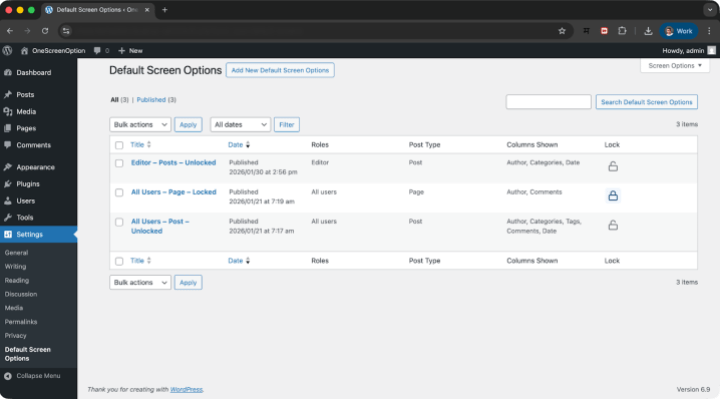
Step 2: Choose a post type (Posts, Pages, or any CPT) and select target user roles.
Step 3: Toggle on the columns you want visible. Enable “Lock” if you want to prevent users from changing these settings.
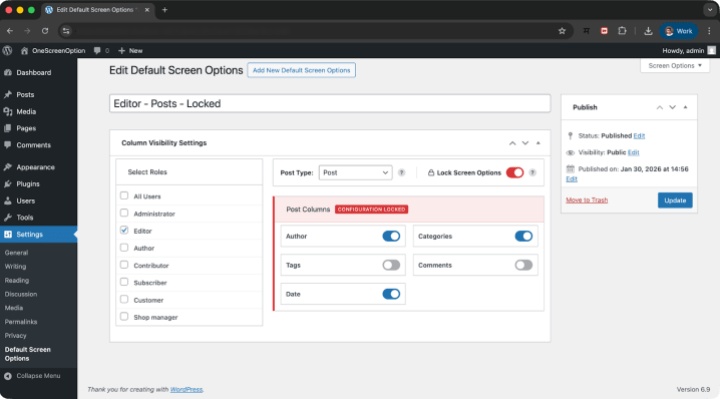
Step 4: Publish. Done.
New users matching your configuration see these defaults immediately. Existing users see them on their next visit (unless they’ve already set personal preferences and you haven’t locked the config).
Key Features
Role-based Defaults
Different views for Editors, Authors, Administrators.
Lock Toggle
Prevent users from changing column visibility.
Auto-detects Plugin Columns
Works with Yoast, ACF, WooCommerce, and virtually any plugin.
Smart Fallback Hierarchy
Locked configs override everything; unlocked configs serve as defaults for new users.
Works with Multisite
Site-specific configurations.
WordPress VIP Compatible
Follows WordPress VIP coding standards, uses transient caching.
Admin Experience Matters as Much as User Experience
We talk endlessly about frontend UX—page speed, accessibility, beautiful themes. But what about the people who live inside the WordPress admin eight hours a day?
At rtCamp, we’ve spent over ten years helping universities, publishers, and media organizations scale and manage large-scale WordPress sites. We keep seeing new sites launch with a neat, easy to use admin area. As time goes on and more plugins get added, the dashboard starts to feel crowded. Before long, editors are stuck repeatedly tweaking column settings just to find the details they need.
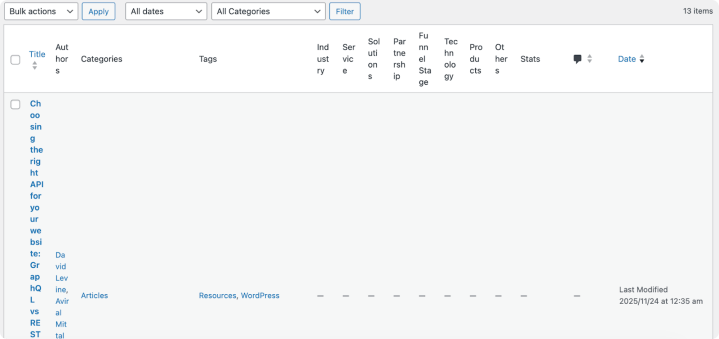
This plugin is to solve for that pain point.
For enterprise teams especially, the goal is to surface the right information in a clean, consistent way, and even keep the overall experience governable.
How It Compares
| Feature | Screen Options (rtCamp) | Admin Columns Pro | Custom Code |
| Set default visible columns | ✓ Yes | ✓ Yes | ✓ Possible |
| Role-based defaults | ✓ Native | Pro only ($89+/yr) | Manual coding |
| Lock columns | ✓ Built-in | ✗ No | Custom hooks |
| Add/create new columns | ✗ Not the focus | ✓ Core feature | Full control |
| Auto-detects plugin columns | ✓ Yes | ✓ Yes | Manual |
| Free & open source | ✓ 100% | Freemium | ✓ (your time) |
Bottom line: Screen Options handles governance, what users see by default. Admin Columns handles customization, adding new columns and inline editing. Many teams use both.
FAQs
Does it work with custom post types?
Yes. It auto-detects all registered post types, including those from plugins like WooCommerce.
Will it conflict with Admin Columns?
No. They solve different problems and work well together.
What happens when I install a new plugin that adds columns?
The column cache refreshes automatically when plugins change. New columns default to hidden, they won’t appear until you enable them.
Can users override locked settings?
No. The Screen Options tab still appears, but checkboxes are disabled with a notice explaining the admin manages these settings.
What’s the performance impact?
Minimal. Column scanning runs once every 24 hours and caches results. After that, it adds less than 5ms to page loads.
Get Started
The plugin is free, open source, and available on GitHub. Setup takes under five minutes.
If you are developer, extend it to your heart’s content.
Check it out, and share your experience and feedback. 🙂
On this page


Leave a Reply